| Advanced Topics |
| |
| Grip Editing |
| |
| By now you should be familiar with grips. These are the âblue squares' that get highlighted when you select an object outside of a command. |
| |
 |
| |
| Grips are handles that allow you to manipulate the object without entering a command directly. Be aware that grip editing can lead to undesired results if you are not careful. |
| |
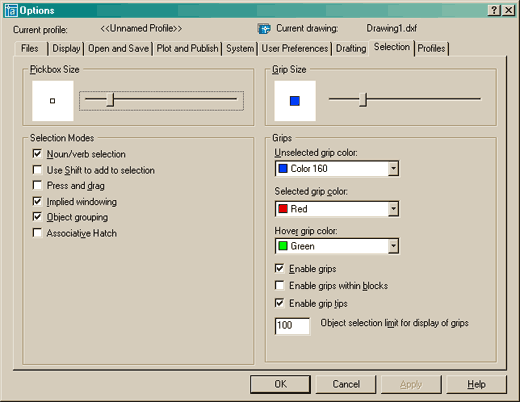
| The look of your grips can be changed by entering the DDGRIPS command. You'll see this dialog box (it's the Options dialog box: Selection tab): |
| |
 |
| |
| Notice that you can enable or disable grips, as well as control whether they are enabled within blocks or not. |
| |
| You can change the colors so that they are more visible depending on the particular drawing or background color you are working in. You can also change the size of the grip if you need. |
| |
| Notice that there are two different colors for grips, one when they are unselected (but visible) and another color when they are selected, or hot. |
| |
| Usually these settings do not need to be changed. |
| |
| When you first start working with grip editing, I recommend that you use it for modifying your dimensions. This is an easy way to get started, as it won't affect your geometry. |
| |
Once you have mastered grip editing with dimensions, try editing your geometry and you'll find that in many cases this can be quicker and easier than using the regular AutoCAD commands.
When you first select a grip and make it hot, it turns red and you are able to stretch it to where you need it to go. Always read your command line when grip editing. |
| |
Command:(select an object)
** STRETCH **
<Stretch to point>/Base point/Copy/Undo/eXit: |
| |
| You'll see that there are few options, ignore these for now and try the stretch option. You can now move that point anywhere and snap to any Osnap that you have active. This can be a quick easy way to connect lines rather than extend them. Once you have made your modification, press the escape key to deselect the grips. (Pressing the enter key will repeat the last command, which you don't want to do). You may have to press escape a few times to totally deselect the object. |
| |
| The stretch option is only the first of several commands that you have available for grip editing. By pressing the space bar, you will be able to cycle through all available options for grip editing. |
| |
Command:(select an object)
** STRETCH **
<Stretch to point>/Base point/Copy/Undo/eXit:
** MOVE **
<Move to point>/Base point/Copy/Undo/eXit:
** ROTATE **
<Rotation angle>/Base point/Copy/Undo/Reference/eXit:
** SCALE **
<Scale factor>/Base point/Copy/Undo/Reference/eXit:
** MIRROR **
<Second point>/Base point/Copy/Undo/eXit: |
| |
| The previous lines of text show what the command line would look like as you cycle through the options. |
| |
To use any of these options, you should be very comfortable
using the regular commands first. |
| |
You'll notice that these other options work a bit differently thant the stretch option. If you have many objects selected, you can stretch one point, but can move all the objects highlighted with grip editing. This applies to the rotate, scale and mirror options as well.
Different objects have different grips available to them. A line has 3 grips: 2 endpoints and a midpoint. You can stretch the endpoints, but if you âstretch' the midpoint, you move the line. You can stretch quadrants of a circle to change the radius, but stretching the center grip will move the circle. Single line text has one or two grips depending on the justification used. You can use their grips to align the text. |
| |
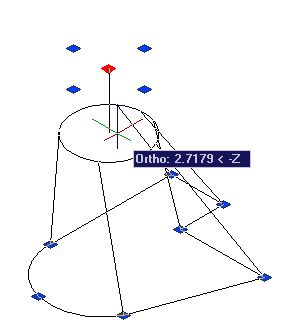 |
You can also use grips to adjust points in 3D objects. Just like a 2D object, select the solid with no commands are currently running and the grips will appear. You can then stretch grips to new points, giving you more power when editing solids.
In the example on the left, the Center grip was used to shorten the 3D solid. |
|
| In review, if you can master grips, you will be able to be much quicker at editing your drawing. In many cases you will want to make sure your Osnaps are on, to snap the grip to the correct location. |
| |
|
| |


