| Advanced Topics |
| |
| Autocad Template Files |
| |
| Whether you know it not, you have already used templates to begin a new drawing. AutoCAD uses a template every time it starts up. If you do not use your own template, AutoCAD will use a default one. |
| |
| A template is a drawing file that includes some of the following settings: |
| |
- Unit type and precision
- Drawing limits
- Snap, Grid, and Ortho settings
- Layer organization
- Title blocks, borders, and logos
- Dimension and text styles
- Linetypes
|
| |
| In many cases, you do not want to set these things every time you begin a drawing. By having a template with all of these parameters pre-set, you can work more efficiently, faster and consistently. There is no difference between a template file and regular DWG other than the extension. |
| |
| Most companies should have a set of template (or prototype) drawings available to their CAD staff. This would include presets for layer names, colors, title blocks, etc so that every drawing from that company has a consistent look. |
| |
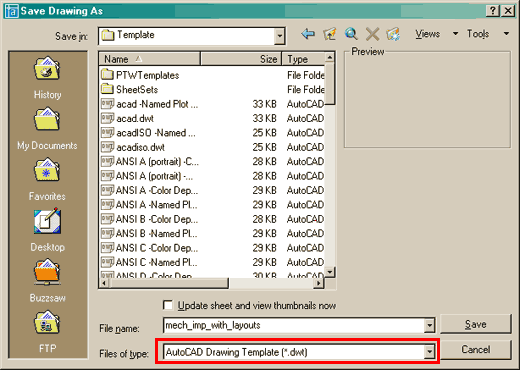
| You will see this dialog box: |
| |
 |
| |
| You have to change the âFiles of type' setting from a DWG file to a DWT (template) file. |
| |
| Once you've changed this, make sure you save it in the folder where you can load it later. |
| |
| To use the template for a new drawing, choose the 'New' option to start a new file and select the template you want. |
| |
|
| |


