| Introduction to 3-D |
| |
| New Project |
| |
| Open your chair_line_thickness.dwg drawing and immediately save it under a new name: chair_3D_face.dwg |
| |
| What you're going to do is add 3-D faces to the tops of the back, sides and sides. Begin by viewing your model in the SW Isometric view. Type hide to see where you need to cap off the extruded lines. Type REGEN or RE to regenerate your screen so you can see all the corners again. |
| |
| Make sure that BACK is the current layer. Type 3DFACE to begin the command. You will be asked to select some points. Make sure that your endpoint Osnaps are on. |
| |
| When asked to pick the points, select them in the order as if you were drawing a rectangle. Do not go from one corner to an opposite one. After you have picked the fourth corner, press (enter). Your command line should look like this: |
| |
Command: 3dface Specify first point or [Invisible]: (Pick 1)
Specify second point or [Invisible]: (Pick 2)
Specify third point or [Invisible] <exit>: (Pick 3)
Specify fourth point or [Invisible] <create three-sided face>: (Pick 4)
Specify third point or [Invisible] <exit>: <ENTER> |
| |
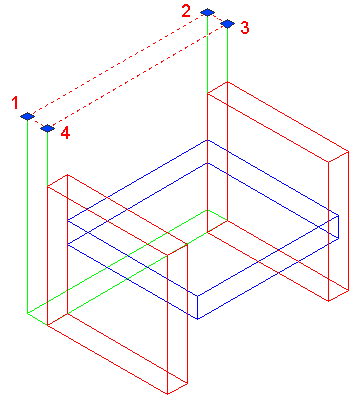 |
| |
| Repeat the command to add 3-D faces to the top of the sides and the seat. 3D faces are great for making odd shapes that include any four lines (or arcs) that are touching). |
| |
| Enter the HIDE commands to check that it was done correctly. If it all worked, you should see an image identical to the solid model. You'll notice that the 3D face covers what would be the opening at the top of the arms and the back. If it was done incorrectly, there may be a line running down from the back corner of each piece. |
| |
| Save the file. |
| |
| Now you have created some true 3-D objects. Take some time to think about how much work was involved in each method: Wireframe, line thickness and extruding. Think about instances where one might be better than the other. Review the methods that you have used so far: |
| |
|
| |


