| Introduction to 3-D |
| |
| Regions And 3-D Surfaces |
| |
| In this lesson, you'll begin using true 3-D commands. First you will create a 2-D region and then extrude it into a 3-D solid. Then you will add 3-D surfaces to the tops of your previous drawing (line thickness) to close the back, sides and seat. |
| |
| Begin a new drawing with the acad.dwt template. |
| |
| Create 3 layers called SIDES, SEAT, and BACK and give them different colors. |
| |
| Draw the outlines (using rectangles) of the back, sides and seat as you did, but don't add line thickness. |
| |
| You'll start by creating a region for the back of the chair. Make sure that back is your current layer. (Any region you create will be on the current layer, regardless of which layer the object was on when you selected it.) Start the region command by entering REGION (or REG) at the command line. Pick the polyline that will become the back of the chair and press enter. Your command line should look like this: |
| |
Command: region <ENTER>
Select objects: 1 found
Select objects:
1 loop extracted. |
| |
| If the Region wasn't created, it usually means that you have a gap in the shape. Polylines must be closed to be used for Regions. Repeat this for the other polylines representing the 2 arms and the seat, ensuring that you have the correct layer current. |
| |
| At this point, you have four 2-D regions. The next step is to extrude them into 3-D solid objects. Make BACK the current layer and start the EXTRUDE command. Pick the region on the back layer. Look at the command line. You will be asked a few things: |
| |
Command: EXT EXTRUDE
Current wire frame density: ISOLINES=4
Select objects: 1 found
Select objects:
Specify height of extrusion or [Path]: 34
Specify angle of taper for extrusion <0>: |
| |
| The first thing that AutoCAD needs is the height of the extrusion. This is similar to the thickness that you gave the polylines in lesson 5. Remember that if you give a positive number, it will extrude in the positive Z-axis. If you give a negative number, it will extrude the region in the negative Z-axis. Then you are asked for the 'Extrusion Taper Angle'. In most cases this will be the default of zero. Press to accept the default. |
| |
| Note: You can also extrude directly from rectangles, circles and closed polylines, but I wanted to show you the Region command. |
| |
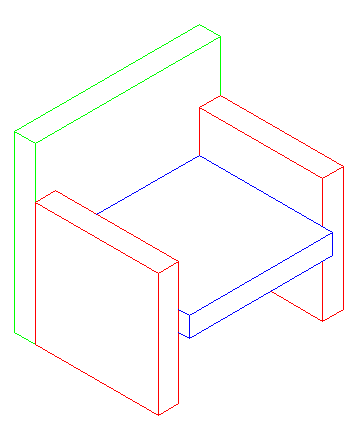
| Extrude the sides and seat. Remember to move the seat up 12" if you haven't already. Check that the model is correct by viewing it in the SW isometric view. Type HIDE (HI)and you should see a solid chair like the one below. |
| |
 |
| |
| Now you can see how solids are a good way to go in some cases. They will usually give you the most accurate way of viewing the model. You can also get a lot of information out of a solid. Use the pull-down menus to access the Mass Properties commands. (Tools> Inquiry> Mass Properties) Click on one of the solid objects. You'll see that AutoCAD can give you a lot of information about it. A lot of these are useful in engineering applications, but the volume is something that may be needed in many different instances. As you'll see in the next lessons, you can do a lot with solids. |
| |
| Save your drawing under the name: chair_extruded.dwg |
| |
|
| |


