| Planning a Project |
| |
| Hatching |
| |
| Hatching in AutoCAD is a way of filling in areas of your drawing with a pre-formatted pattern to represent certain materials. It is usually used in sectional views. Starting with AutoCAD release 14, you can use a solid fill to completely fill in areas such as walls in a floor plan. |
| |
| There are two types of hatching you can use. Generally you will want use the BOUNDARY HATCH command. |
| |
| Command |
Keystroke |
Icon |
Menu |
Result |
| Boundary Hatch |
Bhatch / H |
 |
Draw > Hatch |
Covers an area with a predefined pattern |
| Hatch Edit |
HatchEdit / HE |
 |
Modify > Object > Hatch... |
Edits an existing Hatch |
|
| |
| Draw a rectangle 10 units by 10 units and put a circle with 2" radius in the middle of it. |
| |
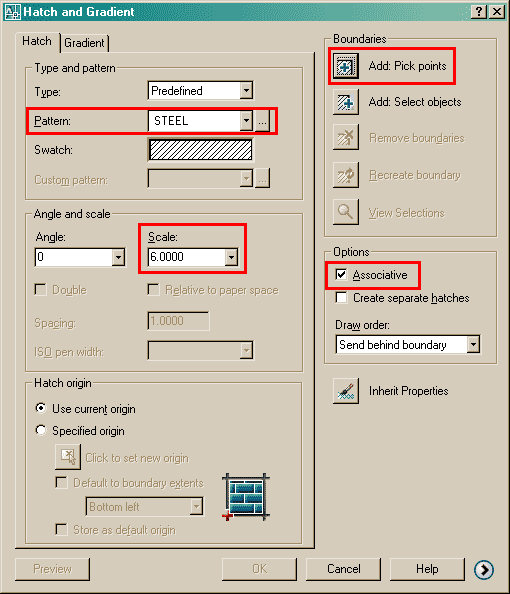
| Start the Boundary Hatch by typing H . When you start the command, you will this dialog box appear: |
| |
 |
| |
| As usual, start at the top of the dialog box and work your way down. We're going to say that this is a cross section of piece of steel, so choose the predefined Hatch pattern called STEEL. |
| |
| Now you want to pick the area to be hatched. Pick somewhere inside the rectangle, but outside of the circle and press <ENTER>. |
| |
|
Set the scale of the hatch to 6. This is just a number that works for this object. A larger number will make the hatch bigger (maybe so big you won't see it) and a smaller number can make the hatch so dense that it looks solid. |
| |
| Make this "Associative" - this means that if you adjust the rectangle or circle, the hatch will automatically correct itself to the new boundary. |
| |
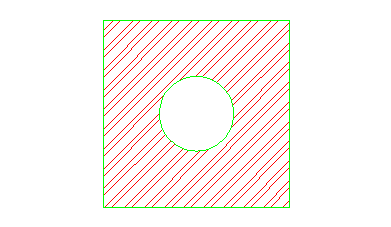
| Finally, hit the Preview button to see if this is what you are after, it should match the image below. |
| |
 |
| |
| Note that AutoCAD recognized the circle in the middle and didn't hatch over it. If the lines appear 'jagged', don't worry - it is a video issue -the prints will come out clean and straight. |
| |
| If you want to edit the hatch, the easiest way is to just double-click on it. (If you can't double-click on it, type in HE <ENTER>). This will bring up the same dialog box (almost) that you just used to create the hatch. Try different settings in the Hatch Edit dialog box and preview the results. |
| |
| To see what "Hatch Association" is, pick on the rectangle (be careful not to select the hatch) and you'll see 4 squares appear on the corners. Click and drag one of the corners and release it. If you hatch is associative, it will update to the new shape. |
| |
| TIPS: |
| |
| If you are using a solid hatch, make the hatch WHITE so that it will print out as a solid black, any other color will appear gray (with lines) when printed. |
| |
| If you have one hatch area drawn and want it to match the hatch of another, use the "Inherit Properties" button on the Hatch Edit dialog box. |
| |
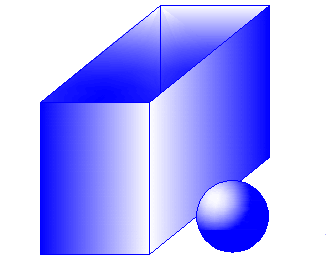
| In recent versions of AutoCAD, you can add a 2 color gradient to an object. Look for the "Gradient" tab at the top of the Hatch dialog boxes. Below is a sample of a really basic 2D 'rendering' using this method. Pick on the gradient tab of the hatch dialog box. |
| |
 |
| |
| You can create custom hatch patterns, or find custom ones available on the internet. Another site offers some free ones as well as extensive collections for sale. |
| |
| Hatches can be exploded - but be VERY careful if you do this. In fact, don't explode hatch patterns unless you really need to. |
| |
| There is a setting in the Tools > Options dialog box under the drafting tab that allows you to turn on or off the ability to snap to hatch objects. Off is the default. |
| |
|
| |


