| Planning a Project |
| |
| Polylines |
| |
| A polyline is an object in AutoCAD that consists of one or more line (or arc) segments. A rectangle is an example of a polyline that you are already familiar with. As you've seen, it is one object that can be modified and worked with easier than four separate lines. |
| |
| Polylines are created using the POLYLINE command, invoked by typing PL at the command line. To draw a simple polyline, draw it as though you are using the line command. The only difference is that it is one object instead of many. |
| |
| Polylines have some unique qualities that make them very useful: |
| |
1. They can have width (constant or varying)
2. They can consist of arcs and lines.
3. They can be edited
4. They can be joined together.
5. They can be exploded into individual segments |
| |
| Command |
Keystroke |
Icon |
Menu |
Result |
| Polyline |
Pline / PL |
 |
Draw > Polyline |
Creates a polyline of arcs and/or lines. |
| Polyline Edit |
Pedit / PE |
 |
Modify > Polyline |
Edits polyline objects |
|
| |
| When you start the command, you will notice that there are several options available: |
| |
Command: pl PLINE
Specify start point:
Current line-width is 0.0000
Specify next point or [Arc/Close/Halfwidth/Length/Undo/Width]: |
| |
|
Remember that any time you want to choose an option, you type in the Capitol letter of that option. |
| |
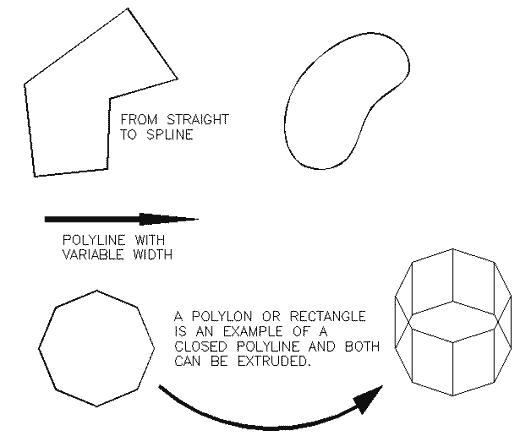
| One important tool is the Close option. This truly closes a polyline, which is different that just having two ends meeting at the same point. A closed polyline is required for extruding into 3-D space and other modifications. If you use the CL option while drawing to complete your polyline, it will automatically be closed. |
| |
| The Spline option allows you to draw a shape of lines using arcs and/or straight lines and then change them into one flowing curve. |
| |
| Also by changing the width of a polyline, you can get some different looks to your lines. |
| |
| Look at the examples below and then practice drawing polylines and try some of the options available. |
| |
 |
| |
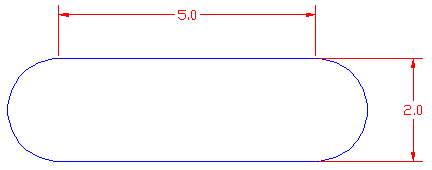
| Below is a sample drawing you can reproduce using a polyline. First, think about how you would draw it using lines, arcs and circles. |
| |
 |
| |
| Here's how you draw it using one polyline: |
| |
Command: pl PLINE
Specify start point: <pick a point>
Current line-width is 0.0000
Specify next point or [Arc/Halfwidth/Length/Undo/Width]: 5
Specify next point or [Arc/Close/Halfwidth/Length/Undo/Width]: a
Specify endpoint of arc or
[Angle/CEnter/CLose/Direction/Halfwidth/Line/Radius/Second pt/Undo/Width]: 2
Specify endpoint of arc or
[Angle/CEnter/CLose/Direction/Halfwidth/Line/Radius/Second pt/Undo/Width]: l
Specify next point or [Arc/Close/Halfwidth/Length/Undo/Width]: 5
Specify next point or [Arc/Close/Halfwidth/Length/Undo/Width]: a
Specify endpoint of arc or
[Angle/CEnter/CLose/Direction/Halfwidth/Line/Radius/Second pt/Undo/Width]: cl |
| |
| Remember DDE? Start by entering your first point, then (with Ortho on) move your cursor to the right and type 5 <ENTER> then A <ENTER> for arc and move your cursor up and type 2 <ENTER> then type L <ENTER> (to go back to straight lines) and more your cursor to the left and type 5 <ENTER> then back to arc (A <ENTER>) and then type CL to close the polyline. |
| |
| To edit a polyline, use the PEDIT command or type PE at the command line. |
| |
Command: pe PEDIT Select polyline or [Multiple]:
Enter an option [Close/Join/Width/Edit vertex/Fit/Spline/Decurve/Ltype
gen/Undo]: |
| |
| One of the most common editing tools is the Join (J) option. Use this to combine two or more polylines. |
| |
| Use the LINE command to draw a line from 0,0 to 5,5. Now use the line command to draw a line from 5,5 to 8,5. This will leave you with 2 line objects that share a common point (5,5). Start the PEDIT command (PE) and select one of the lines. AutoCAD will ask you if you want to turn it into one, select Y <enter>. |
| |
Command: pe PEDIT Select polyline or [Multiple]:
Object selected is not a polyline
Do you want to turn it into one? <Y> Y <enter>
Enter an option [Close/Join/Width/Edit vertex/Fit/Spline/Decurve/Ltype
gen/Undo]: J
Select objects: <select a line> 1 found |
| |
Select objects: <select the other line>
1 segments added to polyline |
| |
| Now you have one object (a polyline). This is a handy tool to use for editing. |
| |
| Now the shape is complete and you can offset it, scale it, etc., as one object. In 3D, you could also extrude it. |
| |
| Polylines are useful - try to use them whenever possible. Sometimes you can draw the outside walls of a building, offset the polyline for the wall thickness, then explode both of them for more versatility. |
| |
|
| |


