| Planning a Project |
| |
| Formatting Text |
| |
| To format text in AutoCAD, you have to create a new text style for each different font and style of text. |
| |
| By default in the acad.dwt file, AutoCAD loads the txt font because it is simple to display on the screen. Unfortunately, it is a very basic and 'ugly' font. Here is an example of the default TXT font compared to the 'standard' ROMANS font. Look at the O's in particular. The TXT font has no curves. |
| |
 |
| |
| It is easy to load in a new style for all of your text. Here's how: |
| |
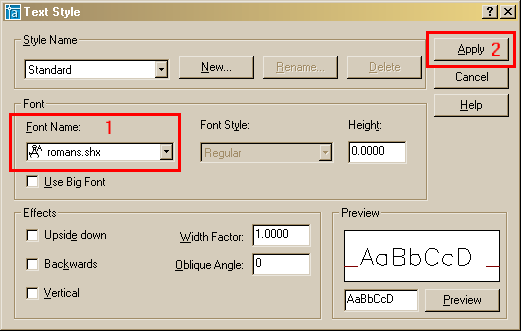
| Use your pull-down menus Format > Text, or type ST, and this dialog box appears. |
| |
 |
| |
| Click on the Font Name edit box and select "romans.shx" as your new text style. This style will be used for all text and dimensioning in the next assignments. This is a common, clean font that AutoCAD can display quickly on the screen. |
| |
| No other adjustments are needed. IMPORTANT: Do NOT change the Height in this dialog box unless you really know why you are doing it. If you set a height here, AutoCAD will not be able to scale if for uses such as dimensioning, in other words, it is fixed. |
| |
|
| |


