| Getting Started with AutoCAD |
| |
| Changing Layers |
| |
| Many times you will draw an object and find that is on the wrong layer. To change an object's layer, you can open the Properties palette (as shown above) or use this easy tip. |
| |
| Create a new LAYER and call it LINES. Do not make it the current layer. Draw a line on the 0 layer. |
| |
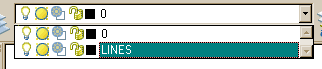
| Now select the object and then move your cursor up to the layer droplist. You'll see a list of all of your layers - pick on the LINES layer - then press ESC. |
| |
 |
| |
| Now when you check the properties of the line, you'll see that it is on the LINES layer. This is one method you will be using a lot, so learn it and master it. |
| |
| Match Properties |
| |
| One of the easiest ways to set properties is to use the MATCH PROPERTIES command. This is used by starting the command (icon is easiest) and then selecting the source object (the one that has the desired properties) and then selecting the target object(s). Use can also select the source object first, then the icon and then the target object. |
| |
|
| |


