| Getting Started with AutoCAD |
| |
| Modifying Commands |
| |
| Draw a LINE from 1,2 to 3,2 to 3,4 to 1,4 (*Remember to watch the command line as you do this.) For the last line, you can either type in 1,2 or C to close the line back to the first point you entered. These are absolute co-ordinates. Make sure you understand what the points your just entered represent. |
| |
| Draw the next square using the RECTANGLE command. A rectangle is created by specifying 2 points to represent the opposite corners. Enter the first point as 4.5,2 and then make the opposite corner 2 inches over and 2 inches up @2,2 using relative co-ordinates. This is much faster and also makes the square one object and not 4 separate lines. |
| |
| ERASE the rectangle. You will see that all of it is gone with one pick. Redraw it and continue. |
| |
| Draw the third box using the MULTILINE command. This box is 1-1/2" square. The following steps are what you will see on the command line. Before drawing the lines, you have to set the SCALE to 0.15"(distance between the lines) by typing 'S'. Then set the JUSTIFICATION (offset origin) by typing 'J'. |
| |
Command: ml <enter>
MLINE
Current settings: Justification = Top, Scale = 1.00, Style = STANDARD
Specify start point or [Justification/Scale/STyle]: s <enter>
Enter mline scale <1.00>: .15
Current settings: Justification = Top, Scale = 0.15, Style = STANDARD
Specify start point or [Justification/Scale/STyle]: 8,2 <enter>
Specify next point: @1.5,0 <enter>
Specify next point or [Undo]: @0,1.5 <enter>
Specify next point or [Close/Undo]: @-1.5,0 <enter>
Specify next point or [Close/Undo]: @0,-1.5 <enter>
Specify next point or [Close/Undo]: <enter> |
| |
| To review what you just did, you started the command, then set the scale (distance between the lines) to .15 units. Then you just drew the rectangle using relative co-ordinates. |
| |
| Erase the multiline rectangle you just drew. Notice that when you hover over the rectangle, it will turn to a dotted line. This means that it is highlighted as the object that will be selected if you pick at that moment. In highly detailed drawings, this is very handy. |
| |
| Draw it again as shown below and note the subtle difference from the first one you drew. |
| |
Command: ML <enter>
MLINE
Current settings: Justification = Top, Scale = 1.00, Style = STANDARD
Specify start point or [Justification/Scale/STyle]: s <enter>
Enter mline scale <1.00>: .15
Current settings: Justification = Top, Scale = 0.15, Style = STANDARD
Specify start point or [Justification/Scale/STyle]: 8,2 <enter>
Specify next point: @1.5,0 <enter>
Specify next point or [Undo]: @0,1.5 <enter>
Specify next point or [Close/Undo]: @-1.5,0 <enter>
Specify next point or [Close/Undo]: C <enter> |
| |
| The difference is that instead of drawing to the last point, you used the C (close) option to complete the rectangle. The difference is shown in the drawing below. |
| |
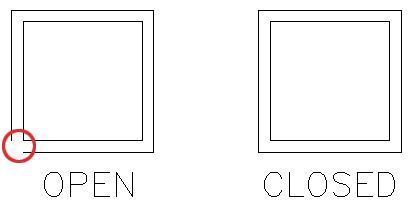 |
| |
| This is an example of why you have to look at the command line as you work. As soon as you start the command, you have choices available. Whenever you see this come up, if you want to change anything, you just type the CAPITAL letter of the option. For example, if you want to undo the last point, you would type u at this point. For this assignment you only changed the scale. After you have completed the assignment, try different settings for this command. Use your AutoCAD help option to see what these options control. (NOTE: I don't normally use Multilines while drawing as I don't have complete control over both the inner and outer lines. On the other hand, Multilines can be great for drawing quick offset lines. Also, they cannot be trimmed (you have to explode them first). |
| |
| Draw a line from 2,5 to 2,6.5 Draw another line from 1,6 to 3,6 You should now have two perpendicular lines. What you want to do is trim off the top of the vertical line and create a T. |
| |
| Start the TRIM command. It will first ask for a cutting edge. Select the horizontal line and press <ENTER>. It will now ask for the object to be trimmed. Select the vertical line anywhere above the horizontal (cutting) line and press <ENTER> to finish the command. |
| |
| This is what you saw on the command line: |
| |
Command: TR <enter> TRIM
Current settings: Projection=UCS, Edge=None
Select cutting edges ...
Select objects: <Select the Horizontal line>1 found
Select objects: <enter>
Select object to trim or shift-select to extend or [Fence/Crossing/Project/Edge/eRase/Undo]: <Select the vertical line>
Select object to trim or shift-select to extend or [Project/Edge/Undo]: <enter> |
| |
| Once again, it is important to keep your eye on the command line as it will guide through most commands. |
| |
| Draw a LINE from 4,6.5 to 6,6.5 Draw another line from 5,5 to 5,6 What you want to do now is extend the vertical line up to the meet horizontal line. Start the EXTEND command. AutoCAD asks for a boundary edge; select the horizontal line press <ENTER>. It then asks for an object to extend; select somewhere in the top half of the vertical line. Press <ENTER> to end the command. Your command line history should match what is printed below. |
| |
Command: EX <enter> EXTEND
Current settings: Projection=UCS, Edge=None
Select boundary edges ...
Select objects: <Select the horizontal line> 1 found
Select objects: <enter>
Select object to extend or shift-select to trim or [Fence/Crossing/Project/Edge/Undo]: <Select the top half of the vertical line>
Select object to extend or shift-select to trim or [Project/Edge/Undo]: <enter> |
| |
| Draw a CIRCLE with a center point of 7.5,5.5 with a radius of .5 Now you will use to offset command to make another circle 1/4" larger. Start the OFFSET command (watch the command line) and enter .125 as the offset distance. Now select the circle and pick anywhere outside the circle. Press <ENTER> to end the command. |
| |
|
| |


