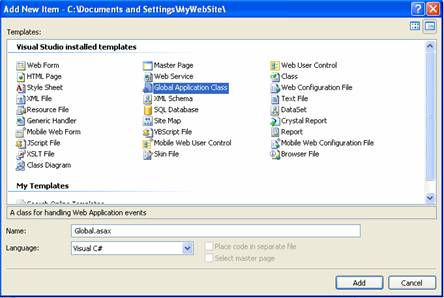
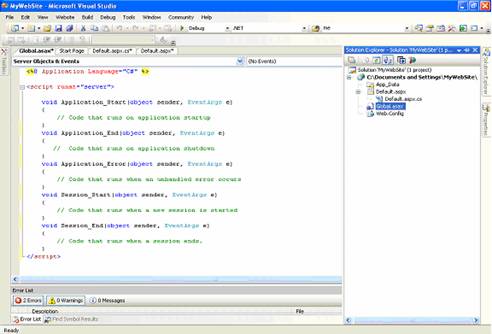
3. To open the âGlobal Application Class? events, select it in the Solution Explorer? and double click it then you will to get all the events of the âGlobal Application Class? as given the figure below.
<script runat="server">
void Application_Start(object sender, EventArgs e)
{
// Code that runs on application startup
}
void Application_End(object sender, EventArgs e)
{
// Code that runs on application shutdown
}
void Application_Error(object sender, EventArgs e)
{
// Code that runs when an unhandled error occurs
}
void Session_Start(object sender, EventArgs e)
{
// Code that runs when a new session is started
}
void Session_End(object sender, EventArgs e)
{
// Code that runs when a session ends.
}
</script>
<%@ Application Language="C#" %>
<script runat="server">
void Application_Start(object sender, EventArgs e)
{
// Code that runs on application startup
}
void Application_End(object sender, EventArgs e)
{
// Code that runs on application shutdown }
void Application_Error(object sender, EventArgs e)
{
// Code that runs when an unhandled error occurs
}
void Session_Start(object sender, EventArgs e)
{
// Code that runs when a new session is started
}
void Session_End(object sender, EventArgs e)
{
// Code that runs when a session ends.
}
</script>
 |
 |
 |