2. Double click the page in âDesign View?
3. Select all by pressing âCltr+A? keys in Code View and remove all the code.
4. Copy the Code written below and paste it in âCode View? of the Web Page.
using System.Data;
using System.Configuration;
using System.Web;
using System.Web.Security;
using System.Web.UI;
using System.Web.UI.WebControls;
using System.Web.UI.WebControls.WebParts;
using System.Web.UI.HtmlControls;
public partial class _Default : System.Web.UI.Page
{
string sb;
protected void Page_PreInit(Object sender, EventArgs e)
{
sb="Event PreInit is Called" + "<br>";
Response.Write(sb);
}
protected void Page_Init(Object sender, EventArgs e)
{
sb="Event Init is Called" + "<br>";
Response.Write(sb);
}
protected void Page_InitComplete(Object sender, EventArgs e)
{
sb="Event InitComplete is Called" + "<br>";
Response.Write(sb);
}
protected void Page_PreLoad(Object sender, EventArgs e)
{
sb="Event PreLoad is Called" + "<br>";
Response.Write(sb);
}
protected void Page_Load(Object sender, EventArgs e)
{
sb="Event Load is Called" + "<br>";
Response.Write(sb);
}
protected void Page_LoadComplete(Object sender, EventArgs e)
{
sb="Event Load is Called" + "<br>";
Response.Write(sb);
}
protected void Page_PreRender(Object sender, EventArgs e)
{
sb="Event PreRender is Called" + "<br>";
Response.Write(sb);
}
protected void Page_PreRenderComplete(Object sender, EventArgs e)
{
sb="Event PreRenderComplete is Called" + "<br>";
Response.Write(sb);
}
protected void Page_Unload(Object sender, EventArgs e)
{
sb="This event is called when your page is complete rendered" + "<br>";
}
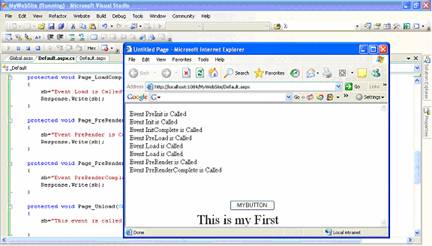
6. You will find the Output of code as sequence of text string written as in figure below.
 |
 |
 |