| Forms |
| |
| Editing Forms |
| |
| The follow points may be helpful when modifying forms in Design View. |
| |
| 1. Grid lines - By default, a series of lines and dots
underlay the form in Design View so form elements can be easily
aligned. To toggle this feature on and off select View|Grid from the menu bar. |
| |
| 2. Snap to Grid - Select Format|Snap to Grid to align
form objects with the grid to allow easy alignment of form objects
or uncheck this feature to allow objects to float freely between
the grid lines and dots. |
| |
| 3. Resizing Objects - Form objects can be resized by
clicking and dragging the handles on the edges and corners
of the element with the mouse. |
| |
| 4. Change form object type - To easily change the
type of form object without having to create a new one, right
click on the object with the mouse and select Change To and
select an available object type from the list. |
| |
| 5. Label/object alignment - Each form object and its
corresponding label are bounded and will move together when
either one is moved with the mouse. However, to change the
position of the object and label in relation to each other
(to move the label closer to a text box, for example), click
and drag the large handle at the top, left corner of the object or label. |
| |
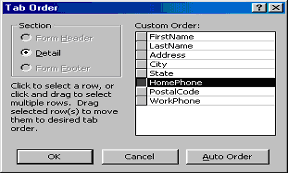
| 6. Tab order - Alter the tab order of the objects on
the form by selecting View|Tab Order... from the menu bar. Click
the gray box before the row you would like to change in the tab
order, drag it to a new location, and release the mouse button. |
| |
|
| |
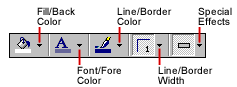
| 7. Form Appearance - Change the background color of
the form by clicking the Fill/Back Color button on the formatting
toolbar and click one of the color swatches on the palette. Change
the color of individual form objects by highlighting one and
selecting a color from the Font/Fore Color palette on the formatting
toolbar. The font and size, font effect, font alignment, border around
each object, the border width, and a special effect can also be modified
using the formatting toolbar: |
| |
|
| |
| 8. Page Header and Footer - Headers and footers added to a
form will only appear when it is printed. Access these sections by
selecting View|Page Header/Footer on the menu bar. |
| |
| |
|
| |
| |