| Handling Queries |
| |
| Creating A QUERY IN DESIGN VIEW |
| |
| Follow these steps to create a new query in Design View: |
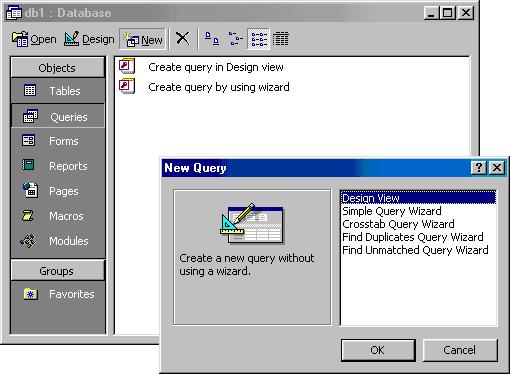
| 1. From the Queries page on the Database Window, click the New button |
| |
|
| |
| 2. Select Design View and click OK. |
| |
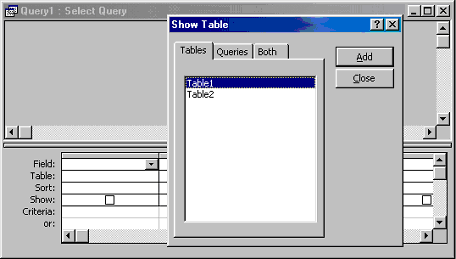
| 3. Select tables and existing queries from the Tables
and Queries tabs and click the Add button to add each one to the new query. |
| |
| 4, Click Close when all of the tables and queries have been selected. |
| |
| 5. Add fields from the tables to the new query by
double-clicking the field name in the table boxes or selecting
the field from the Field: and Table: drop-down menus on the query form.
Specify sort orders if necessary. |
| |
|
| |
|
| |
Enter the criteria for the query in the Criteria: field. The
following table provides examples for some of the wildcard symbols and
arithmetic operators that may be used. The Expression Builder  can also
be used to assist in writing the expressions can also
be used to assist in writing the expressions |
| |
| Query and Expression Operators |
| Operator |
Explanation |
| ? |
The question mark is a wildcard that takes the place of a single letter. |
| * |
The asterisk is the wildcard that represents a number of characters. |
| <100 |
Value less than 100 |
| >=1 |
Value greater than or equal to 1 |
| <>"FL" |
Not equal to (all states besides Florida) |
| Between 1 and 10 |
Numbers between 1 and 10 |
Is Null
Is Not Null |
Finds records with no value
or all records that have a value |
| "a*" |
All words beginning with "a" |
| >0 And <=10 |
All numbers greater than 0 and less than 10 |
| "Bob" Or "Jane" |
Values are Bob or Jane |
|
| |
| 6. After you have selected all of the fields and tables, click
the Run button on the toolbar. |
| |
| 7. Save the query by clicking the Save button. |
| For the viewlet of Table in Design View.Click Here! |
| |
| |
|
| |
| |