| Tables |
| |
| Relationships |
| |
| After you've set up multiple tables in
your Microsoft Access database, you need a way of telling Access how
to bring that information back together again. The first step in this
process is to define relationships between your tables. After you've
done that, you can create queries, forms, and reports to display
information from several tables at once. |
| |
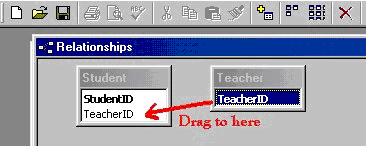
| A relationship works by matching data in key fields - usually
a field with the same name in both tables. In most cases, these matching
fields are the primary key from one table, which provides a unique
identifier for each record, and a foreign key in the other table.
For example, teachers can be associated with the students they're
responsible for by creating a relationship between the teacher's
table and the student's table using the TeacherID fields |
| |
| |
| Having met the criteria above, follow these steps
for creating relationships between tables. |
| 1. In the database window view, at the top, click
on Tools ---> Relationships. |
| |
| 2. Select the Tables you want to link together, by clicking on them and selecting the Add Button. |
| |
|
| |
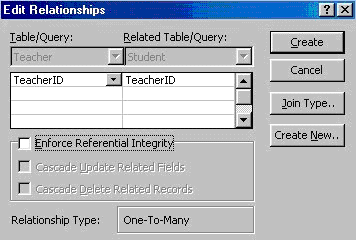
| 3. Select Enforce Referential Integrity |
| |
|
| |
| 4. When the Cascade Update Related Fields check box is
set, changing a primary key value in the primary table automatically
updates the matching value in all related records. |
| |
| o When the Cascade Delete Related Records check box is
set, deleting a record in the primary table deletes any related
records in the related table. |
| |
| 5. Click Create and Save the Relationship |
| |
| |
|
| |
| |