| Tables |
| |
| Manipulating Data |
| |
| Adding Records |
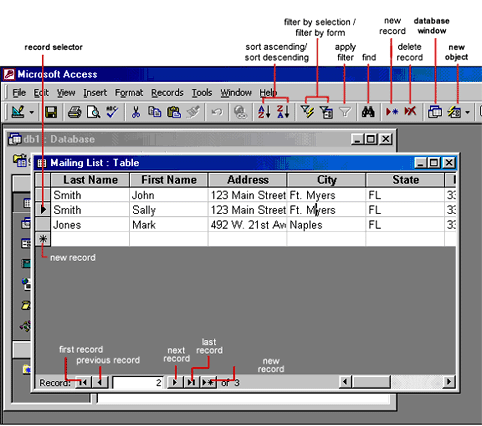
| Add new records to the table in datasheet view by typing
in the record beside the asterisk (*) that marks the new record.
You can also click the new record button at the bottom of the
datasheet to skip to the last empty record. |
| |
|
| |
| |
| Editing Records |
| To edit records, simply place the cursor in the record
that is to be edited and make the necessary changes. Use the arrow
keys to move through the record grid. The previous, next, first, and
last record buttons at the bottom of the datasheet are helpful in
maneuvering through the datasheet. |
| |
| |
| Deleting Records |
| Delete a record on a datasheet by placing the cursor
in any field of the record row and select Edit|Delete Record from
the menu bar or click the Delete Record button on the datasheet toolbar. |
| |
| |
| Adding and Deleting Columns |
| Although it is best to add new fields (displayed as
columns in the datasheet) in design view because more options
are available, they can also be quickly added in datasheet view.
Highlight the column that the new column should appear to the
left of by clicking its label at the top of the datasheet and
select Insert|Column from the menu bar. |
| |
| Entire columns can be deleted by placing the cursor
in the column and selecting Edit|Delete Column from the menu bar. |
| |
| |
| Resizing Rows and Columns |
| The height of rows on a datasheet can be changed by
dragging the gray sizing line between row labels up and down
with the mouse. By changing the height on one row, the height
of all rows in the datasheet will be changed to the new value. |
| |
| Column width can be changed in a similar way by dragging
the sizing line between columns. Double click on the line to have
the column automatically fit to the longest value of the column.
Unlike rows, columns on a datasheet can be different widths.
More exact values can be assigned by selecting Format|Row Height
or Format|Column Width from the menu bar. |
| |
| |
| Freezing Columns |
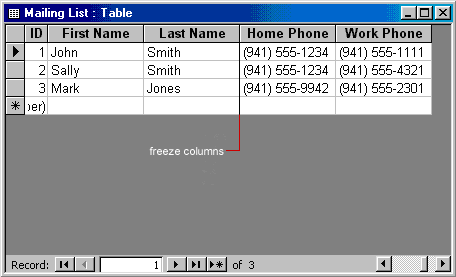
| Similar to freezing panes in Excel, columns on an Access
table can be frozen. This is helpful if the datasheet has many
columns and relevant data would otherwise not appear on the screen
at the same time. Freeze a column by placing the cursor in any record
in the column and select Format|Freeze Columns from the menu bar.
Select the same option to unfreeze a single column or select
Format|Unfreeze All Columns. |
| |
|
| |
| |
| Hiding Columns |
| Columns can also be hidden from view on the datasheet
although they will not be deleted from the database. To hide a column,
place the cursor in any record in the column or highlight multiple
adjacent columns by clicking and dragging the mouse along the column
headers, and select Format|Hide Columns from the menu bar. |
| |
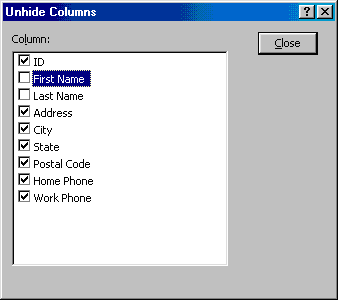
| To show columns that have been hidden, select Format|UnhideColumns from the menu bar. A window displaying all of the fields in the
table will be listed with check boxes beside each field name. Check the
boxes beside all fields that should be visible on the data table
and click the Close button. |
| |
|
| |
| |
| Finding Data in a Table |
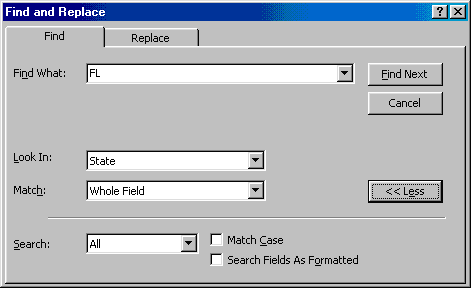
| Data in a datasheet can be quickly located by using the Find command. |
| 1. Open the table in datasheet view. |
| |
| 2. Place the cursor in any record in the field that
you want to search and select Edit|Find... from the menu bar. |
| |
| 3. Enter the value criteria in the Find What: box. |
| |
| 4. From the Look In: drop-down menu, define the area
of the search by selecting the entire table or just the field in
the table you placed your cursor in during step 2. |
| |
| 5. Select the matching criteria from Match: to and
click the More >> button for additional search parameters. |
| |
| 6. When all of the search criteria is set, click
the Find Next button. If more than one record meets the
criteria, keep clicking Find Next until you reach the correct record. |
| |
|
| |
| |
| Replace |
| The replace function allows you to quickly replace a
single occurrence of data with a new value or to replace all
occurrences in the entire table. |
| 1. Select Edit|Replace... from the menu bar (or click
the Replace tab if the Find window is already open). |
| |
| 2. Follow the steps described in the Find procedure
for searching for the data that should be replaced and type the
new value of the data in the Replace With: box. |
| |
| Click the Find Next button to step through occurrences
of the data in the table and click the Replace button to make single
replacements. Click Replace All to change all occurrences |
| |
| |
|
| |
| |