| Tables |
| Â |
| WORKING ON TABLES |
| Â |
| NAMING FIELD |
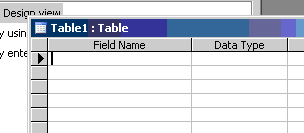
| 1. This will bring up the Table Design View |
| Â |
|
| Â |
| 2. There are three columns here that should be explained in detail |
| o Field Name: This is where you type
the name for your column. A common practice is to make it one word
and to use capitalization for multiple words squished into one (e.g. SaleNumber) |
| Â |
| o Data Type: This column is where you
specify the type of data that will be stored. If you are storing
money then select Currency. The most common types of data are:
Text, Number, Currency and Date/Time. |
| Â |
| o Description: Here you can type
optional notes to remind yourself or provide useful information
for others who might be viewing this file later. |
| Â |
| Â |
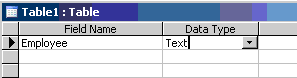
| 3. The first column in our tbl_Sales example was Employee, so
let's enter in Employee in the Field Name column and choose Text from
the Data Type column. If click inside the Data Type column you will see
that it is actually a drop down select box with many options to choose
from. Select the Text option. |
| Â |
|
| Â |
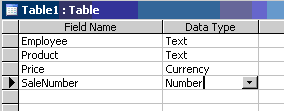
| 4. Enter the following information for our remaining three columns of tbl_Sales: |
| o Field Name: Product, Data Type: Text |
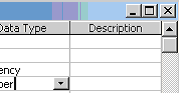
| o Field Name: Price, Data Type: Currency |
| o Field Name: SaleNumber, Data Type: Number |
| Â |
|
| Â |
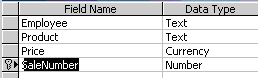
| 5. Before we are finished here, we need to make
a Primary Key. A primary key is restriction that we place on a column stating
that there can be no duplicate values in that column. We will be talking
about keys later, but for now right-click in the SaleNumber row and choose
Primary Key from the pop-up menu. |
| Â |
|
| Â |
| 6. We have finished our table's outline so click the X in
the top right to close the design view (don't close
Access, just the Design Window). |
| Â |
|
| Â |
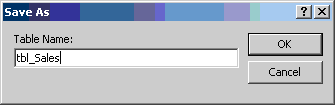
| 7. Click yes and enter "tbl_Sales" for your table's name |
| Â |
|
| Â |
| Although this process of creating an Access table might seem
overly complicated, with time you'll be able to create and edit existing
tables very quickly. Feel free to revisit this page if you are having
trouble creating an Access table. |
| Click here for animated tutorial on How To Work with Table! |
| Â |
| Â |
|
| Â |
| Â |
| Â |