| System Tools |
| |
| The Disk Defragmenter |
| |
| This tool is in charge of reorganizing the information that is stored in the disk, although it can also fix errors on the units. |
| |
| Windows incorporates this tool because the disk becomes slow as we save new data and delete old data. This is why we need to reorganize the information so that the free spaces between the information disappear and the performance of our disk improves. By doing this we will also be able to access information quicker. |
| |
| The free spaces that are generated when information from the disk is deleted influence the size that files and programs use. This is the reason why when we see the properties of a file two sizes appear, the real size of the file and the space that the file is using in the disk. If we defragment the disk we will notice that the difference between the two sizes decreases. |
| |
| Click on Defragment Now... and the disk defragmenter window will appear, similar to the one shown below. |
| |
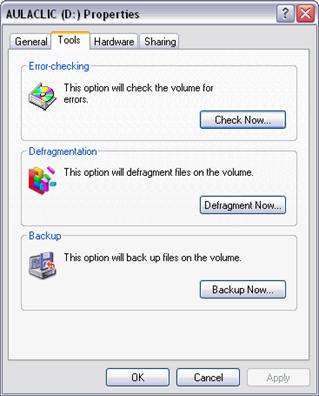 |
| |
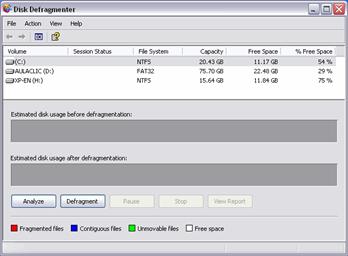
| First select the volume from the list clicking on it, and then you can choose to run the defragmenter directly by clicking Defragment, or check the state of the disk first by clicking Analyze. |
| |
| |
| Depending on the results, you can choose to Defragment the disk or not. When many deletions have been done on the disk a defragmentation in needed because there are many files that are fragmented instead of using a contiguous space on the disk. |
| |
 |
| |
| |
| |
|
| |
| |


