| Searching |
| |
| Searching Files or Folders |
| |
| By choosing All files and folders a screen will appear so that we can give more information on what we are looking for. |
 |
|
| |
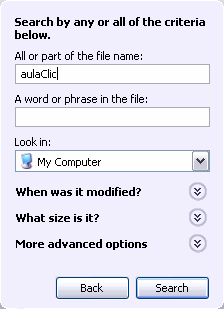
| Searching for Files and Folder |
 |
| |
| In the first box we will put All or part of the file name that we are looking for, and then windows will show us files or folders that contain the characters that we have typed. The more detailed the name the more concise the search will be, thus facilitating the search. |
| |
| In the box A word or phrase in the file we can type the text that the file we are looking for should contain. It is not always convenient to use this box because this significantly slows down the process as it looks for that word or phrase in each file. |
| |
| In the box Look in we can indicate in which unit we wish to look for the file or folder. |
| |
| Click Search to start the search. In the event that Windows does not find anything, it will notify you in the window to the right with a message saying that the search has ended and that there are no results to show |
| |
| While it is carrying out the search, we can stop the search by clicking Stop, either because we have found what we were looking for or because we made a mistake on the search. |
| With the questions that follow we have the possibility of searching by the date it was last modified, size, and other advanced options, such as differentiating between capital letters or lower case letters. |
| |
| The search results will appear on the right side of the window.The operations we carry out on the files or folders found by the search are the same ones that we can do on any other file or folder. We can copy, delete, change name, etc... |
| In dealing with the Windows Explorer we can do the operations talked about in Unit 4 WindowsXP Explorer, that is to say that we can customize the results window, choose the fields we wish to see, choose the type of view, etc |
| |
| For Animated Presentation (With Voice)Click Here. |
| |
| Searching for Hardware |
| If your computer is connected to a network, this option will be useful since it will allow you to access the resources that are shared by other computers within the network. A printer that is connected to another computer, for example, can be used by your computer as long as you have the required permission. |
| |
| To use this option you need to do the following: |
| 1. Click Start. |
| |
| 2. Select the option Search. |
| |
| Once the window has opened choose Computers or people and then A computer on the network, and the next window will open up. |
| |
| |
|
| |


