| Desktop |
| |
| The Bars and Start Button |
| |
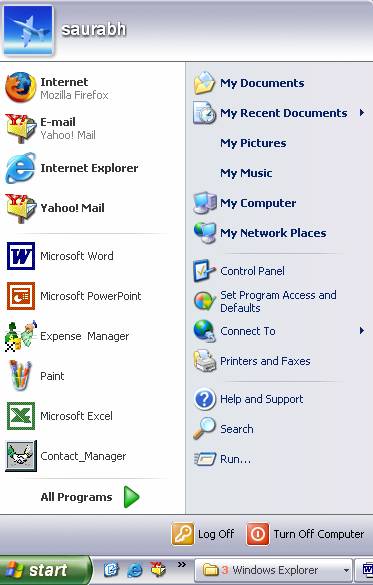
| The Start Button is located at the bottom left corner of your desktop screen. It is situated on the left edge of the Taskbar. A single left-click on this button will launch a popup menu that will look something like |
 |
| |
| Task Bar |
| |
| The task bar is what appears on the bottom of the screen. On the bottom left corner there is the Start button. Next we have the area for shortcuts, then the programs running, and lastly the notification area |
| |
| On the top we can find the name of the current user. In this case it is saurabh |
| On the middle part there are two areas: |
| The left area contains three separate areas divided by a thin line. |
| |
| On the top third we can see Internet Explorer and Outlook Express. |
| |
| They are located here because these are programs included with WindowsXP. On the next third we find all the programs that we have been using lately. In this example, MSN, Windows Media Player, ... This way we have quicker access to the programs that we most frequently use. |
| |
| To gain access to the rest of the programs we have the green triangle All programs. By clicking here, we can view all of the programs that are installed on our computer. |
 |
| |
| On the right hand area there are icons to access the different parts of WindowsXP that are most often used: My documents, My Recent Documents, My Pictures, My Music and My Computer. |
| |
| With the Control Panel icon we can configure and customize the appearance of our computer |
| |
| If we have any questions we can use the Help and Support that Windows offers us. |
| |
| With the Search icon we can find files whose location we are not sure of. |
| |
| The option Run allows us to directly execute certain commands, for example to execute a specific program, etc... |
| |
| At the bottom we have the options Log Off and Turn Off Computer. The first option allows us to close the current session, and the second option allows us to restart or turn off our computer. |
| |
| The shortcuts area |
 |
| |
| Contains icons that are used to access a particular program quickly. To place an icon here, simply drag it from the desktop. These icons are shortcuts that we can create, as we will see on the following page. |
| |
| To execute, simply click on the icon. |
| |
 The icon represents the desktop. It is used to minimize the windows that are opened to access the desktop easier The icon represents the desktop. It is used to minimize the windows that are opened to access the desktop easier |
| |
 The icon represents Internet Explorer. It is used to quickly access Internet. The icon represents Internet Explorer. It is used to quickly access Internet. |
| |
 The icon represents Windows Explorer. It used to quickly access files and folders. The icon represents Windows Explorer. It used to quickly access files and folders. |
| |
| |
| Open programs |
 |
| |
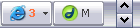
| In this area we can see the buttons of the programs that are currently open and two small arrows pointing up and down. If the button is slightly darker it means that it is the button of the program that we are working with. By clicking on each button we find ourselves in the respective program. |
| |
 |
| |
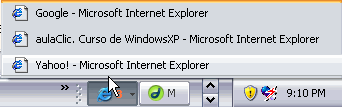
| When there are several programs opened at the same time they are grouped under a button. For example, if we have several windows of Internet Explorer opened or several programs with files. By clicking, a window will choose to open one of them. In this case we choose between the three Internet pages shown. |
| |
| Further to the right, as in the example above, two black arrows help us to navigate the buttons in the event that we are working with many windows and they do not all fit on the task bar. |
| |
| |
| The Notification Area |
 |
| |
| This area contains icons that represent the programs that start up automatically when the computer is turned on as well as other information. In this case about automatic updates and about the antivirus program. |
| |
| If a round button appears, this allows us to expand or shrink the area that contains the icons of these programs. The time also appears here. If you wish to open them simply double-click on the icon. |
| |
| |
|
| |
| |


