| Windows XP Basic |
| |
| Handling Mouse and Keyboard |
| |
| All the windows are formed by: |
| |
| The title bar |
 |
| |
| The title bar contains the name of the program you are working with (Notepad) and in some cases the name of the opened document (aulaclic) also appears. In the top right corner we can find the minimize, maximize/restore, and close buttons. |
| |
 |
The minimize button shrinks the window it turns it into a button located in the WindowsXP task bar. |
| |
|
 |
The maximize amplifies the size of the window to the whole screen |
| |
|
 |
The restore button restores the window to its original state. |
| |
|
 |
The close button closes the window. If we' ve modified the document, we are asked if we want to save the changes before closing. |
| |
| |
| The Menu Bar |
 |
| |
| The menu bar has the program functions organized in menus. For example, when we click on File, the different operations that can be performed with files are displayed. All the operations that the program allows us to do are located within the different menus of this bar |
| |
| To open a menu with the keyboard, you need to press the Alt key plus the underlined letter of the menu you want to open. For example: Alt+F opens the menu File. In no letter is underlined, press Alt key |
| |
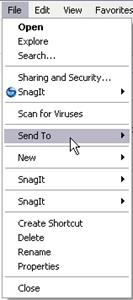
| If on a menu an option appears with a small arrow pointing to the right it means that that option contains other options. If you want to open the menu related to that option, you only need to maintain the option highlighted for a few seconds and the menu will appear |
| |
 |
| |
| If on a menu you find an option that contains three dots. (For Example: Sharing and Security...) it means that the option needs more information to be executed; normally a dialog box will open in which you can place that information |
| |
| |
| The Tool Bar |
 |
| |
| The Tool Bar contains icons to immediatelly execute some of the most often used commands. These commands can also be executed from the menu bar. |
| |
| |
| The Scroll Bar |
 |
| |
| The Scroll Bars allow us to move through out the page in a quick and simple manner. Simply drag the bar with the mouse or click on the arrows. There are bars to move along the width of the page and bars to move along the height of the page. The little square with dots on the right is used to change the size of the window. Simply click and drag. |
| |
| |
| The Status Bar |
 |
| |
| The Status Bar is used to give the user certain information.This information varies depending on the window that is opened at the time. |
| |
| For Example: In this case it tells us that we have 3.75 GB free space on the disk, and that the total size of the disk is 19.5 GB. |
| |
| This bar is not shown by default in Windows XP. You can activate or disactivate it from the menu View --> Status Bar. |
| |
| |
|
| |
| |


