| Word-2007 Application Window |
| |
| The Ruler |
| |
| The ruler is found below the Ribbon. The ruler is a graphical way to change margins, indents and tabs in Word. But there are two differing problems with it. One, because it's on screen by default, users by mistake click on it and end up changing settings that didn't realize they changed. Problem two is that for users who want to use it, the ruler can be hard to see, click on and control the different parts of it. |
|
| |
 |
| |
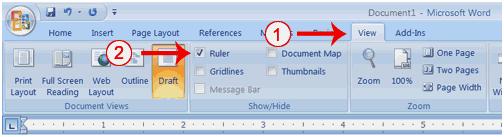
| If your ruler is not visible, turn it on. |
| |
| If your ruler is not visible, follow the steps listed here: |
| |
| 1. Click the View tab to choose it. |
| |
| 2. Click the check box next to Ruler in the Show/Hide group. The ruler appears below the Ribbon. |
| |
| Remember that to make any changes, you must select the text you want to change first, and then use the ruler to actually make the changes. |
| |
| If you don't require or use the ruler, turn it off. |
| |
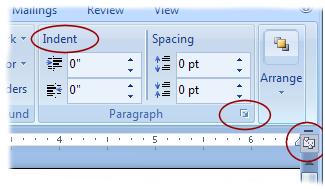 To turn off the ruler in Word 2007, use the View Ruler at the top of the left scrollbar, or go to the View tab, Ruler is in the Show/Hide group. To turn off the ruler in Word 2007, use the View Ruler at the top of the left scrollbar, or go to the View tab, Ruler is in the Show/Hide group.
Ruler Alternatives
Rather than use the ruler, you can change margins in the Page Layout tab, in the Page Setup group; indents and tabs can also be changed in the Page Layout tab, but in the Paragraph group. Indent is visible, Tabs are found by clicking the Paragraph dialog box button. |
| |
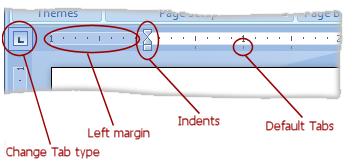
| Here are what the different parts of the ruler are: |
 |
|
| |
|
| |


