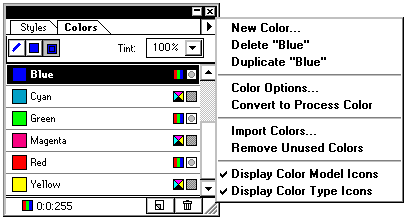
2. To view the current Color palette, from the Window menu, select Show Colors, The Color
Palette appears.
3. Optional: Modify the Color listing to display the colors you want in your library by adding, deleting, or duplicating colors by accessing the Color palette from the right arrow button.
The Create Color Library dialog box appears.
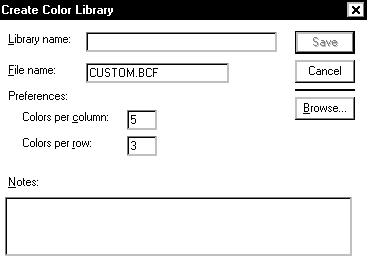
Note: The name that you choose will appear on the Library menu in the New Color dialog box.
6. In the File name textbox, type the desired filename.
Note: PageMaker automatically appends the filename with the .BCF (binary color file) extension.
7. Optional: In the Preferences section of the dialog box, adjust the Colors per column and Colors per row numbers (up to 10x10).
8. Optional: In the Notes textbox, add notes that will appear when someone clicks the About button in the Library dialog box.
9. Click Save.
Note: All color files must reside in the Color folder, which is inside the Language folder; the default saves in the correct location.
Colors.
2. At the bottom of the Color palette, click the NEW Color button
 .
.Choose New Color from the Color palette menu. The Color Options dialog box appears.
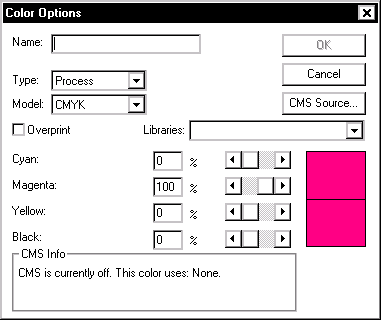
The selected color library appears in the Color Picker dialog box.
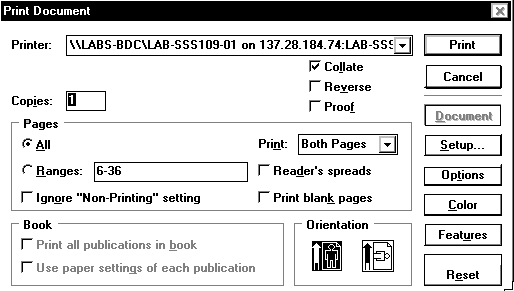
5. To accept the selected color library, click Ok.
 |
 |
 |