2. From the Element menu select Text Wrap...
The Text Wrap dialog box appears.
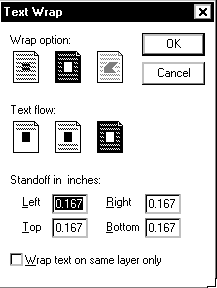
. wrap around square
. wrap around non-standard shape
. above and below
. all around
5. Type the standoff (the distance from surrounding text) in inches for each side of the
graphic.
6. When settings and measurements are correct, click Ok.
2. From the Element menu select Text Wrap...
The Text Wrap dialog box appears on the screen.
3. Select no wrap
 .
.4. Click Ok.
 |
 |
 |