| Working with Plug-ins |
| |
| Changing Case of Text |
| |
| PageMaker provides three type-case attributes: Normal leaves uppercase and lowercase letters as typed; All Caps displays letters as full-sized capitals; and Small Caps displays lowercase letters as small capitals, based on the size specified. |
| Terminology |
| Lower Case |
All the letters are not capitalized.
Example: this selection is lower case. |
| Upper Case |
All the letters are capitalized.
Example: THIS SELECTION IS UPPER CASE. |
| Title Case |
The first letter of each word will be capitalized; the rest of the letters are not capitalized.
Example: This Selection Is Title Case. |
| Sentence Case |
|
The first letter of a word beginning a sentence will be capitalized; the rest of the letters are not capitalized.
Example: This selection is sentence case. The capital letter comes after an end punctuation mark. |
| Toggle Case |
The letters that are currently not capitalized will be changed to upper case; the letters that are currently capitalized will be changed to lower case.
Example: tHIS sELECTION iS tHE tOGGLE cASE vERSION oF a tITLE cASE sAMPLE. |
| |
| Changing the Text Case |
| To quickly change capitalization of a selected range of text, use the following instructions: |
1. With the Text tool, select the text you wish to change capitalization of.
Note: Make sure the [Caps Lock] key is not on. You cannot change case through any method while the [Caps Lock] key is on.
2. From the Utilities menu, select Plug-ins » Change Case...
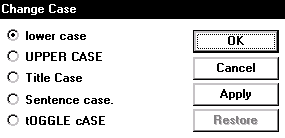
The Change Case dialog box appears. |
 |
| |
3. Select the desired option.
4. Optional: To see the selected case applied to the text without closing the dialog box,
click Apply.
Note: To change the case of the text selection back to the previous case, click Restore.
5. Click Ok. |
| |
| |
|
| |
| |


