| Getting Started |
| |
| Creating New Document |
| |
1. Move the mouse pointer to the File pull-down menu and open it.
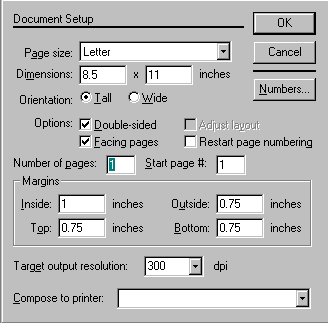
2. Move the pointer to select New. PageMaker displays the Document setup dialog box as
below.
|
| |
 |
| |
| About the Document Setup Dialog Box |
| The Document Setup dialog box allows you to determine what your document will look like. |
| |
| Setting margins, page size, number of pages, and starting page |
| In PageMaker, the standard margin settings are: inside or left: 1.0, at outside or right: 0.75, top: 0.75, bottom: 0.75. You can adjust them to fit your needs. |
| |
| Setting page dimensions |
| Standard page dimensions are 8.5" x "11" for letter size paper. Change the dimension in the selected box by typing in a new number. Select a different box by pressing the [Tab] key or double clicking on the box. |
| |
| Determining page orientation |
| The page may be tall or wide in orientation. |
| |
| Adjusting the number of pages |
| Change the number of pages by typing the appropriate number in the Number of pages text box. |
| |
| Other Options |
Pages can be set up as single, double-sided or facing. (Pages cannot be facing unless they are double-sided.) For single-sided pages there should be no options selected.
The following descriptions should help with your decision making:
Single-sided
Pages show only one page at a time on the screen and only one master page is created.
Double-sided
Pages also show only one page at a time on the screen. However, two master pages are created. This option is appropriate for publications that will be printed on both sides of a page.
Facing
Pages display two pages at a time on the screen (except page one, which is displayed alone). This selection is appropriate if you are setting up a magazine or booklet, because the pages are set up to face each other, just as they would in a book.
Fill information according to your need and and click ok command button. A new window will appear similar to next page.
|
| |
| |
|
| |
| |


