| General MySQL Administration |
| |
| Importing & Exporting Text Files |
| |
| Sometimes, the contents of a table should be written as efficiently as possible into a text file or read from such a file. MySQL offers several ways of doing this: |
| |
| . The SQL command LOAD DATA reads in a text file and transfers the contents into a table. |
| |
| . With mysqlimport there is a command available that is equivalent to LOAD DATA.Itis especially well suited for automating the importation of a script file. |
| |
| . The SQL command SELECT ... INTO OUTFILE writes the result of a query into a text file. |
| |
| . If you wish to automate exportation with a script, then the command mysqldump is to be recommended. Its functionality is similar to that of SELECT ... INTO OUTFILE. |
| |
| . In many cases you can use the universal tool mysql for implementing text, HTML, or XML exportation. |
| |
| If none of the above commands suits your needs, then you will have to write your own script to assist you in importing or exporting. The programming language Perl was made for such tasks. |
| |
| Special Characters in the Imported or Exported File |
| |
| A common feature of LOAD DATA, SELECT ... INTO OUTFILE, mysqlimport, and mysqldump is the set of options for handling special characters in a text file. There are four options for this purpose, which as SQL commands look like this: |
| |
FIELDS TERMINATED BY 'fieldtermstring'
ENCLOSED BY 'enclosechar'
ESCAPED BY 'escchar'
LINES TERMINATED BY 'linetermstring' |
| |
| . fieldtermstring specifies the character string that separates the columns within the row (for example, a tab character). |
| |
| . enclosechar specifies a character that is permitted to appear in the text file before and after individual entries (usually a single or double quote character for character strings). If an entry begins with this character, then that character is deleted at the beginning and end. (The end of a column is recognized by fieldtermstring.) |
| |
| . escchar specifies the escape character that is to be used to indicate special characters (the default is the backslash). This is necessary if special characters appear in character strings of the text file that are also used for separating rows or columns. Moreover, MySQL expects code 0 in the form \0 (where the backslash is to be replaced by escchar). |
| |
| . linetermstring specifies the character string with which a row is terminated. With DOS/Windows text files the character string '\r\n' must be used. |
| |
| Working with Character Strings, Numbers, Dates, and BLOBs |
| |
| For all the commands introduced in this section there is a data format that must be followed exactly. In particular, for importation you must hold to the format expected by MySQL. For exportation you have somewhat more leeway, in that you can use SQL functions for formatting data in the SELECT command (such as DATE_FORMAT for formatting dates and times). |
| |
| Moreover, there are four options that you can use to determine how rows and columns should be separated and how character strings and special characters should be indicated. |
| |
| . Numbers: For very large and very small numbers in the FLOAT and SINGLE formats one has the use of scientific notation in the form -2.3e-037. |
| |
| . Character Strings: Strings are not changed in importation and exportation (ANSI format, one byte per character). Special characters contained in the character string are marked by default with the backslash in order to distinguish these from the characters used for separation (e.g., tab, carriage return, linefeed). |
| |
| . BLOBs: Binary objects are treated byte for byte like character strings. Neither in importing nor exporting is there the possibility of using hexadecimal character strings (0x123412341234 ... ). |
| |
| . Date and Time: Dates are treated as character strings of the form 2003-12-31, and times as character strings of the form 23:59:59. Timestamp values are considered integers of the form 20031231235959. |
| |
| . NULL: The treatment of NULL is problematic. The following text assumes that the backslash is used as the escape character for special characters and the double quote character for indicating a character string. If you use other characters (options FIELDS ESCAPED BY '?' ENCLOSED BY '?'), then you will have to reconfigure the following paragraphs. |
| |
| In exporting with escape characters, NULL is represented by \N. In exporting without escape characters NULL is simply represented by the four characters NULL. However, NULL or \N is placed between double quote characters (though not if they are in a text or BLOB field) and can therefore be distinguished from character strings. |
| |
| In importing with escape characters, MySQL accepts NULL, \N, and "\N" as NULL. However, "NULL" is interpreted as a character string (consisting of the four characters NULL). |
| |
| Importing with LOAD DATA INFILE |
| |
| The syntax of LOAD DATA is as follows: |
| |
LOAD DATA [loadoptions] INFILE 'filename.txt' [duplicateoptions]
INTO TABLE tablename [importoptions] [IGNORE ignorenr LINES]
[(columnlist)] |
| |
| The result is that the file filename.txt is imported into the table tablename. There are various options |
| |
| Example 1 |
| |
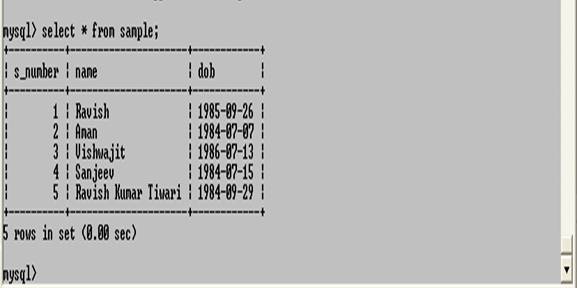
| The table SAMPLE consists of THREE columns: |
| |
| AUTO_INCREMENT column (S_NUMBER) and dob. |
| |
| The column name refers to its data type. The Windows text file data.txt is to be imported into this table. (Here --> represents a tab character): |
| |
"Ravish" 1985-09-26
"Aman" 1984-07-07
"Vishwajit" 1986-07-13
"Sanjeev" 1984-07-15
"Ravish Kumar Tiwari" 1984-09-29 |
| |
| The import command looks like this: |
| |
USE ravish
LOAD DATA INFILE 'c:\data.txt'
INTO TABLE sample
FIELDS TERMINATED BY '\t'
      ENCLOSED BY '\"'
LINES TERMINATED BY '\r\n'
(name,dob)
  Query OK, 3 rows affected (0.00 sec)
  Records: 3 Deleted: 0 Skipped: 0 Warnings: 2
|
| |
| A SELECT command demonstrates that the importation was only partially successful. In both the first and third lines, the date has been incorrectly interpreted. Moreover, in the third line the decimal number with the German comma for a decimal point has caused problems; namely, the part to the right of the decimal point has gone missing. In sum, take care to obey the MySQL formatting rules to the letter when preparing a file for importation: |
| |
 |
| |
| |
| CSV Import |
| |
| Sometimes, one wishes to import data into MySQL from a spreadsheet program like Excel. Such programs generally offer the possibility to store tables in CSV (comma-separated values) format. In principle, the importation of such files proceeds effortlessly. For files that were created with Excel under Windows, suitable import options look like this: |
| |
FIELDS TERMINATED BY ',' ENCLOSED BY '\"'
LINES TERMINATED BY '\r\n' |
| |
| In practice, importation usually runs into trouble with the formatting of dates (usually in the form 12/31/2003, about which MySQL is clueless). In particular, with Microsoft software, the automatic country-specific formatting of numbers can cause problems when, for example, Excel suddenly represents a decimal number with a comma instead of a period for the decimal point. In such cases one can get help from a special import script for MySQL (or else you can program your own export filters for Excel). |
| |
| Error Search |
| |
| As the previous examples have shown, importing text is often problematic. Unfortunately, LOAD DATA returns in MySQL 4.0 merely a brief status output, which gives, among other things, the number of warnings: |
| |
Query OK, 15 rows affected (0.00 sec)
Records: 10 Deleted: 5 Skipped: 0 Warnings: 2 |
| |
| This result means that ten records were read in. Five existing records were replaced by new records (thus 15 rows affected). There were problems with two records (rows) detected by LOAD DATA (2 warnings). The nature of the problems, and which rows of the file were affected, remains a mystery. |
| |
| Exporting with SELECT ... INTO OUTFILE |
| |
| With the command SELECT ... INTO OUTFILE we are dealing with a garden-variety SELECT, where before the FROM part, INTO OUTFILE is used to specify a file name and several possible options: |
| |
SELECT [selectoptions] columnlist
INTO OUTFILE 'filename.txt' exportoptions
FROM ... WHERE ... GROUP BY ... HAVING ... ORDER BY ... LIMIT ... |
| |
| Example |
| |
| The data types of the columns are taken from the column names. The following lines show the result of an OUTFILE exportation without special options. The tab character is again indicated by a hooked arrow. The resulting file has two lines, which for reasons of space are here distributed over five lines: |
| |
| select * into outfile 'c:\data1.txt' from sample; |
| |
| Exporting with mysqldump |
| |
| As an alternative to SELECT ... INTO OUTFILE there is the auxiliary program mysqldump. This program is actually primarily a backup . |
| |
| The program mysqldump always stores entire tables (and not the result of a particular SELECT query). A further difference is that mysqldump normally does not return a text file with the raw data, but entire INSERT commands. The resulting file can then later be read in with mysql. To use mysqldump for text exportation you must specify the option --tab: |
| |
| mysqldump --tab=verz [options] databasename tablename |
| |
| With --tab a directory is specified. In this directory mysqldump stores two files for each table: tablename.txt and tablename.sql. The *.txt file contains the same data as after SELECT ... INTO OUTFILE. The *.sql file contains a CREATE TABLE command, which allows the table to be re-created. |
| |
| As with mysqlimport, the representation of special characters can be controlled with four options: --fields-terminated-by, --fields-enclosed-by, --fields-escaped-by, and --lines-terminated-by. These options are analogous to the SQL options described at the beginning of this section. They should be set in quotation marks (for example, "--fields-enclosed-by=+"): |
| |
C:\> mysqldump -u root -p --tab=c:\tmp "--fields-enclosed-by=\"" ravish sample
Enter password: sa |
| |
| XML Exporting with mysqldump |
| |
| If you execute mysqldump with the option --xml, you obtain as result an XML file (where, however, characters outside the 7-bit ASCII character set are not represented by Unicode, but by the latin1 character set): |
| |
| C:\> mysqldump -u root -p --xml ravish sample > C:\_temp\samle.xml
Enter password: sa |
| |
| Given below is mysql dump file |
| |
|
<?xml version="1.0"?>
<mysqldump xmlns:xsi="http://www.w3.org/2001/XMLSchema-instance">
<database name="ravish">
<table_structure name="sample">
<field Field="s_number" Type="int(10) unsigned" Null="NO" Key="PRI" Extra="auto_increment" />
<field Field="name" Type="char(30)" Null="YES" Key="" Extra="" />
<field Field="dob" Type="date" Null="YES" Key="" Extra="" />
<key Table="sample" Non_unique="0" Key_name="PRIMARY" Seq_in_index="1" Column_name="s_number" Collation="A" Cardinality="5" Null="" Index_type="BTREE" Comment="" />
<options Name="sample" Engine="InnoDB" Version="10" Row_format="Compact" Rows="5" Avg_row_length="3276" Data_length="16384" Max_data_length="0" Index_length="0" Data_free="0" Auto_increment="6" Create_time="2007-05-12 11:37:32" Collation="latin1_swedish_ci" Create_options="" Comment="InnoDB free: 4096 kB" />
</table_structure>
<table_data name="sample">
<row>
<field name="s_number">1</field>
<field name="name">Ravish</field>
<field name="dob">1985-09-26</field>
</row>
<row>
<field name="s_number">2</field>
<field name="name">Aman</field>
<field name="dob">1984-07-07</field>
</row>
<row>
<field name="s_number">3</field>
<field name="name">Vishwajit</field>
<field name="dob">1986-07-13</field>
</row>
<row>
<field name="s_number">4</field>
<field name="name">Sanjeev</field>
<field name="dob">1984-07-15</field>
</row>
<row>
<field name="s_number">5</field>
<field name="name">Ravish Kumar Tiwari</field>
<field name="dob">1984-09-29</field>
</row>
</table_data>
</database>
</mysqldump> |
| |
| |
|
|
| |
| |


