| Installing Linux |
| |
| Pre-install Tasks |
| |
| Requirement |
| |
| For loading this operating system, you need to download the 5CD's or DVD of Fedora Core 6 iso-image from one of the various distribution mirrors by using internet connection or you must have all the set of CDs purchased from the authorized Linux distribution. The downloading process has been earlier mentioned in the previous section |
| |
| Aborting the installation |
| |
| Before beginning the process of installing Fedora Core 6, we would like to tell you about how to abort the installation process at any time if you do not want to install it on your window based operating system along with Linux. |
| |
| We are writing the process of installing Fedora Core 6 server/desktop based operating system for the fresh computer. So for aborting either press Ctrl-Alt-Del or power off the computer with the power switch. Fedora makes no changes to your computer until package installation begins. It is better to install it on the fresh computer. |
| |
| Booting from CD or DVD. |
| |
 |
| |
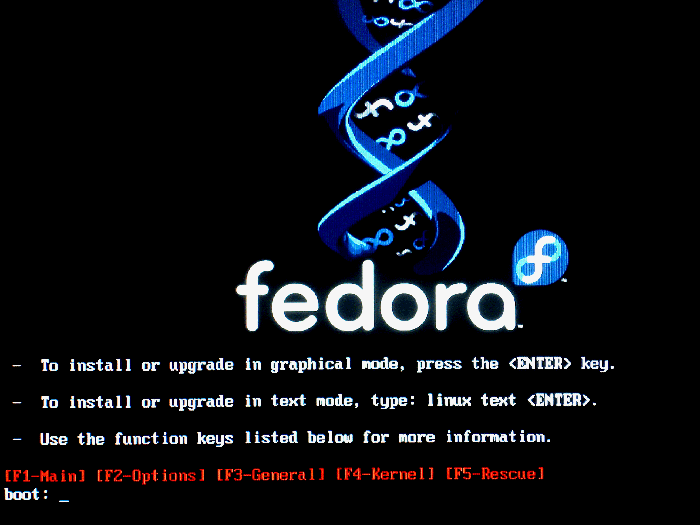
| Three options appear there. |
| |
| If you hit 'Enter', the installation runs in default mode, which is a graphical interface mode.
If you want the installation in Text mode type : Linux text then press. 'Enter' key. |
| |
| Testing the installation media |
| |
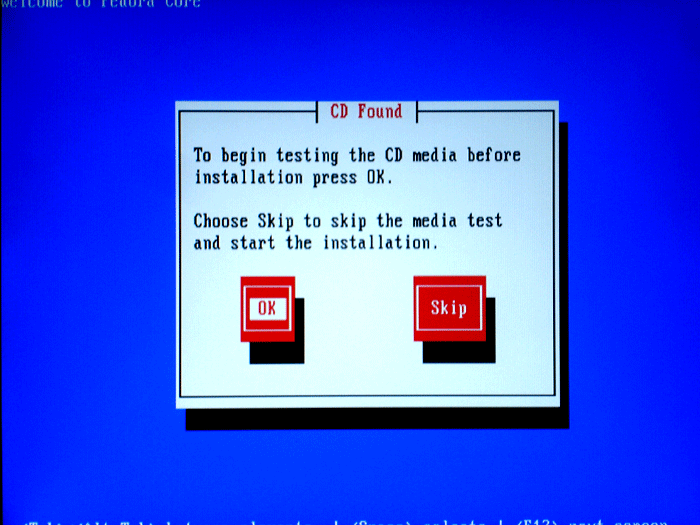
| A window appears, which asks for testing, if you want to test it before installation, click on 'OK' , otherwise press 'Skip' for continuing. |
| |
 |
| |
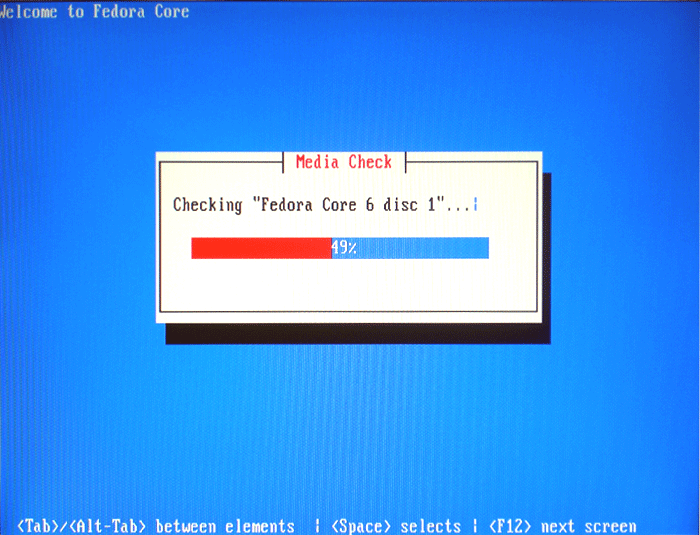
| Test every disk before installation, because many times the disk creates problems during installation time, which cause the loss of time and enhance irritation. For testing the disc 1& Press 'OK'. The process begins... |
| |
 |
| |
After completion of the first disk OK window appears. click it.
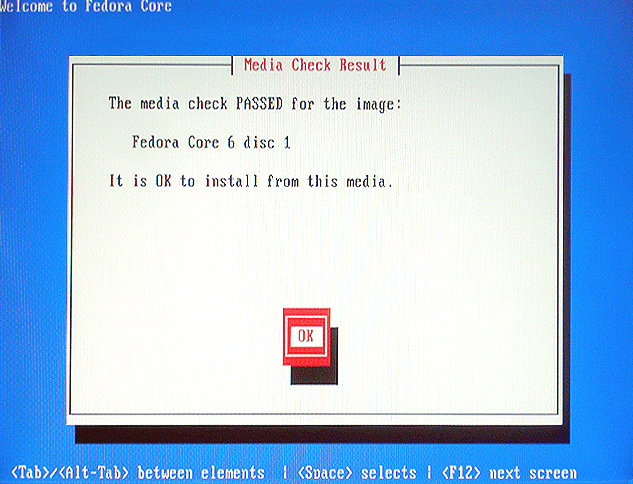
A check result window appears. |
| |
 |
| |
| As the checking completes the above window appears. Click on 'OK'. |
| |
 |
| |
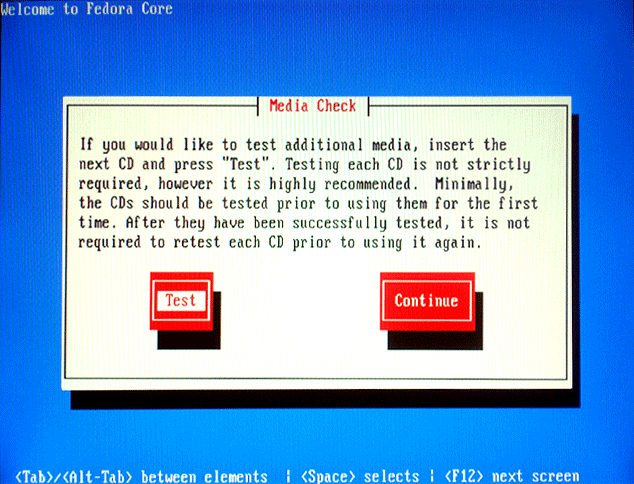
| Now the above window appears having two options test and continue. This window asks for another disk to check. If you want to check another disk insert the disk 2 and press 'Test'. |
| |
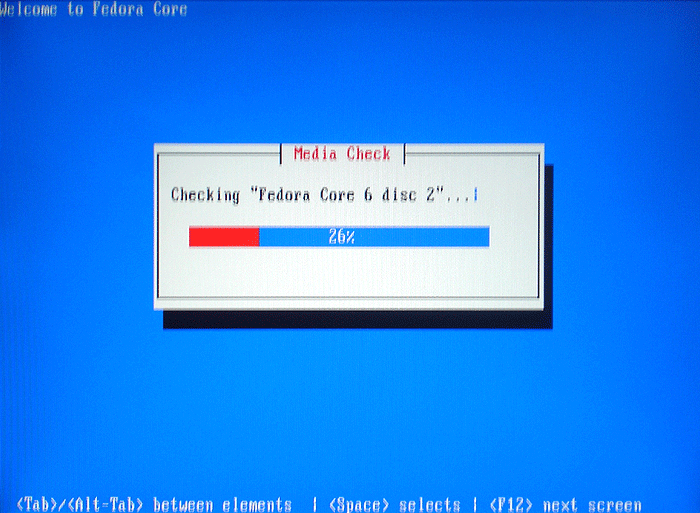
| The testing process again begins. Like this test all the CDs one after another Until all the CDs have tested. |
| |
 |
| |
| After testing all the five disks insert the disk no.1 and follows the instruction until you reaches again testing stage having a window option 'Test' and 'Skip'.
This time press 'Skip' to continue. |
| |
| |
|
|
| |
| |


