| Effects of Illustrator |
| |
| Working with Text |
| |
| You can create type by using one of three methods: at a point, inside an area, and along a path. |
| |
| • Point type is a horizontal or vertical text that begins where you click and expands as you enter characters. Each line of text is independent—the line expands or shrinks as you edit it, but doesn’t wrap to the next line. Entering text this way is useful for adding a few words to your artwork. |
| |
| • Area type uses the boundaries of an object to control the flow of characters, either horizontally or vertically. When the text reaches a boundary, it automatically wraps to fit inside the defined area. Entering text this way is useful when you want to create one or more paragraphs, such as for a brochure. |
| |
| • Type on a path flows along the edge of an open or a closed path. When you enter text horizontally, the characters are parallel to the baseline. When you enter text vertically, the characters that are perpendicular to the baseline. In either case, the text flows in the direction in which points were added to the path. |
| |
| If you enter more text than can fit within an area or along a path, a small box containing a plus symbol (+) appears near the bottom of the bounding area. |
| |
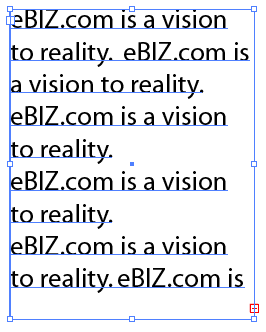 |
| Figure showing overloading of text. |
| |
| Formatting Text |
| |
| Selecting Text |
| |
| • Position the pointer in a word, and double-click to select that word. |
| |
| • Position the pointer in a paragraph, and triple-click to select the entire paragraph. |
| |
| • Select one or more characters, and choose Select > All to select all the characters in the type object. |
| |
| Finding and replacing text |
| |
| • Choose Edit > Find and Replace. |
| |
| • Enter the text you want to find and replace. |
| |
| You can choose a variety of special characters from the pop up menus to the right of the Find and Replace With options. |
| |
| • Click Find and Replace. |
| |
| Formatting Paragraph |
| |
| You use the Paragraph panel (Window > Type > Paragraph) to change the formatting of columns and paragraphs. |
| |
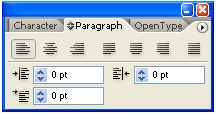 |
| Fig. Paragraph Palette |
| |
| For Justifying Text: |
| |
| 1. Select text |
| |
| 2. In the Paragraph panel, click a justification button. |
| |
| For letter & word spacing: |
| |
| • Enter values for Word Spacing, Letter Spacing, and Glyph Spacing. The Minimum and Maximum values define a range of acceptable spacing for justified paragraphs only. The Desired value defines the desired spacing for both justified and unjustified paragraphs: |
| |
| Word Spacing |
| |
| Word Spacing values can range from 0% to 1000%; at 100%, no additional space is added between words. |
| |
| Letter Spacing |
| |
| Letter Spacing values can range from 100% to 500%: at 0%, no space is added between letters; at 100%, an entire space width is added between letters. |
| |
| |
|
| |

