| Basics of Illustrator |
| |
| Applying strokes & fills. |
| |
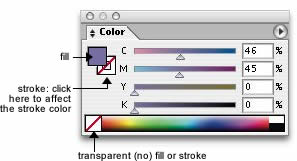
| The flat color, pattern, or gradient that's applied to the inside of a closed or open shape is called the fill. The color or brush stroke that's applied to the edge of a closed or open path is called the stroke. A stroke can be solid or dashed, and it can have an applied brush stroke, but not a gradient. |
| |
| Colors and patterns can be applied using the Color or Swatches palette, buttons on the Toolbox, or the Paint Bucket tool. The Stroke palette is also used to apply characteristics such as stroke thickness (weight) and style (dashed or solid). The color attributes of a selected object are displayed on the Toolbox and the Color and Appearance palettes. The current fill and stroke colors are automatically applied to any new object you create. You can store any color, pattern, or gradient on the Swatches palette for later use. |
| |
| QuickStart drag-color |
| |
| Click the Fill or Stroke box on the Toolbox or the Color palette, click a color on the color bar on the Color palette, then drag from the active box right over an object's fill or stroke—which ever element you want to recolor. The object doesn't have to be selected. If the object is selected, clicking a color swatch or a color on the color bar will automatically change the fill or stroke, depending on which of those boxes is currently active. |
| |
| • You can also drag from the Color box on the expanded Gradient palette or drag a swatch from the Swatches palette. |
| |
 |
| |
| Depending on your preferences (under the Illustrator menu), your pen tool will either look like an old fashioned fountain pen icon, or a "precise cursor." |
| |
| • Shift-drag to apply a stroke color if the fill box is active or apply a fill color if the stroke box is active. |
| |
| Changing stroke attributes |
| |
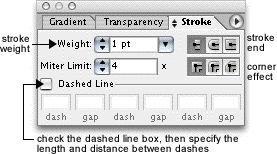
| You can change a stroke's color, weight (thickness), and style (dashed or solid, rounded or sharp corners, flat or rounded ends). First, the width. |
| |
| To change the width of a stroke: |
| |
| 1. Select an object or objects. |
| |
| 2. On the Stroke palette: |
| |
| Click the up or down arrow on the palette to change the current stroke weight one unit at a time. Or click in the Weight field, then press the up or down arrow on the keyboard or |
| |
| Choose a preset weight from the Weight pop-up menu or |
| |
| Enter a width in the Weight field (.01–1000 pt). Note: A stroke narrower than .25 pt. may not print. A weight of 0 produces a stroke of None. The stroke will be balanced on the path: Half the stroke width on one side of the path, the other half on the other side of the path. |
| |
| • Don't apply a wide stroke to small type—it will distort the letterforms. |
| |
| • You can enter a number in inches (in), millimeters (mm), centimeters (cm), picas (p), or pixels (px) in the stroke Weight field. When you click Return/Enter or Tab, the value you enter will be converted automatically to the Stroke unit currently chosen in Edit > Preferences > Units & Undo. |
| |
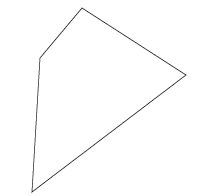
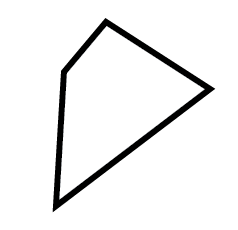
| To change a stroke's thickness, enter a value in the stroke Weight field, or click the up or down arrow, or choose from the pop-up menu. |
| |
 |
| |
 |
 |
| Object with 1 point stroke |
Object with 8 point stroke |
|
| |
| |
|
| |


