| Working with Text |
| |
| Working with Artistic Text |
| |
| For any creative advertisement the requirement is to create a text which is attractive and which is very much viewed by the audience. For this graphic designers creates text which is very attractive. Text in designing is very important. For attractive Text CorelDraw provides many tools. CorelDraw provides effects like fit text to path, perspective and contour effect which makes text more attractive and creative. |
| |
| Creating Artistic Text |
| |
| When you click on the Text tool in the toolbox, you have two options. You can simply click and start typing, or you can drag to draw a text frame and then start typing. For now, all you have to do is click and type. As you do, the Property bar becomes the Editing Text Property bar. Many of the tools in the Editing Text Property bar are more useful for paragraph text than for artistic text, but some are used with artistic text as well. |
| |
| After you finish typing text, click on the Pick tool, the arrow at the top of the toolbox. When you click on the Pick tool, your new text will be surrounded with eight small, square black handles. These handles activate whenever you select any object with the Pick tool and change the size and shape of a selected object. |
| |
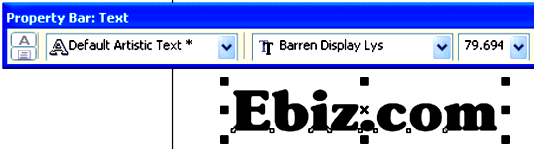
| When you select Artistic Text, the Text Property bar becomes active, as shown in Figure below: |
| |
 |
| |
| The following table explains the Text Property bar tools and lists. |
| |
| Tool |
Name |
What It Does |
| |
|
|
 |
Position |
Identifies (or changes) the position of the object relative to the lower-left corner of the Drawing page, based on the center of the selected object. X is the horizontal location; Y is the vertical location. |
| |
|
|
 |
Size |
Identifies or changes the exact size of the selected object. X represents the width of the object; Y represents the height of the object. |
| |
|
|
 |
Scale Factor |
Enables you to resize the height (Y) or width (X) of the selected object proportional to the current size. For example, changing the X setting to 200 doubles the size of the selected text object. |
| |
|
|
 |
Nonproportional |
When you select this button, Sizingsize changes made to the x-axis Scale Factor spin box do not affect the y-axis, and vice versa. |
| |
|
|
 |
Rotation Angle |
Identifies and lets you change the angle to which the text object rotates. Ninety degrees will rotate the text 90 degrees counterclockwise. |
| |
|
|
 |
Mirror Buttons |
The top Mirror button flips the selected text horizontally; the bottom Mirror button flips the selected text vertically. |
| |
|
|
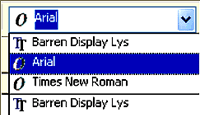 |
Font List |
This drop-down menu lets you select fonts to apply to the selected text. |
| |
|
|
 |
Font Size List |
Assigns font sizes to selected text. |
| |
|
|
 |
Bold |
Assigns (or turns off) boldface for the selected text. |
| |
|
|
 |
Italic |
Assigns (or turns off) italic style for selected text. |
| |
|
|
 |
Underline |
Underlines the text in a selected text object. |
| |
|
|
 |
Format Text |
Opens the Format Text dialog box. |
| |
|
|
 |
Edit Text |
Opens the Edit Text dialog box. |
|
| |
| . Select Ellipse Tool. |
 |
|
| |
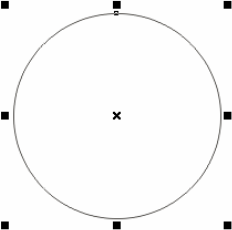
| • Draw Circle. |
| |
 |
| |
| . Type text "Ebiz.com. Keep it selected. |
| |
 |
| |
| . Go to Text > Fit Text to Path |
| |
| . Click on the path. |
| |
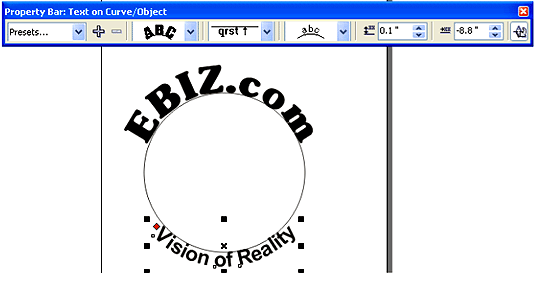
| . The text swill fit with the shape of the circle we have drawn using Ellipse Tool. |
| |
 |
| |
| . Select Text "Ebiz.com". |
| |
| . Go To Arrange Menu and select "Break Text a Part" |
| |
| . Now, type another text "Vision of Reality" |
| |
| . Go to Text>Fit Text to Path |
| |
| . The text will overlap on the previous text. |
| |
| . Now go on the property bar and do some of the adjustment: |
| |
| . Press "Place on other side button". It will place the text on the opposite side of the path. |
| |
| . Increase the Horizontal offset. |
| |
| . Select option from the vertical placement list. |
| |
 |
| |
| Applying Fills on Text |
| |
| . Type the text using thick font. |
| |
 |
| |
| . Select Texture Fill from Fill Tool. |
| |
| . Try using different type of textures. |
| |
| . Go for different types from Texture Library. |
| |
| . Remove the outline or give different colors to outlines and check the difference in the result. |
| |
 |
| |
| Text Outline |
| |
| . Type the text. Fill it with any color. |
| |
| . Outline color should be different from the fill color. |
| |
| . Right click on any color in the color palette to apply colored outline. |
| |
| . Press Outline Tool. |
| |
| . In the fly out menu click on 2 point outline (Thin). |
| |
| . The outline is thicker than the default. Try different types of available thickness. |
| |
 |
| |
| Shadow Effect behind Text |
| |
| . Open Corel DRAW. Type the text. Try to use thick font if possible. |
| |
 |
| |
| . Duplicate the text by pressing Ctrl + D |
| |
 |
| |
| . Fill the backward text with black color and arrange the shadow with pick tool |
| |
| . Double click on the black Text |
| |
| . Drag the upper middle point with the cursor towards left. The Process is called skewing. The angular stretching of an object. |
| |
 |
| |
| . Select the text with Shape tool |
| |
| . With he help of bottom node move each character separately as shown below |
| |
 |
| |
| . Repeat the step 5 |
| |
| . Arrange the shadow properly with Shape Tool again. Move them and place then behind the original characters. |
| |
 |
| |
| . Select Interactive Drop Shadow Tool. Drag the tool on the text slightly. |
| |
 |
| |
| |
|
| |


