| Getting Started |
| |
| Starting CorelDRAW |
| |
| You can start CorelDRAW by one of the following methods: |
| |
| Using the start menu |
| |
| 1. Click on start menu. The start menu will appear. |
| |
| 2. Click at programs. |
| |
| 3. Click on CorelDRAW Graphics Suite 12 |
| |
| 4. Click on CorelDRAW 12. |
| |
 |
| |
| Using Shortcut |
| |
| You can use this feature if the icon of the software has been created and is put on the desktop. |
| |
| 1. First, locate the CorelDRAW shortcut icon. This is colorful pencil shaped icon with coreldraw written beneath it. |
| |
| 2. When you find it, position the mouse over the icon and click it to open the software. |
| |
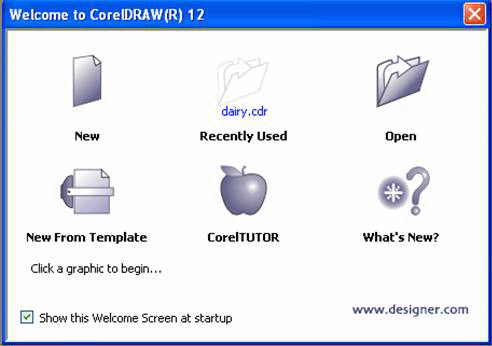
| Using either one of the two options you will start the software and get the opening screen first. Once this is done, coreldraw initial desktop comes on the screen with Welcome to coreldraw screen in the front. |
| |
| The various options in the screen are: |
| |
| New: Create a new window in which you can design a graphic. |
| |
 |
| |
| Recently Used: Open the last graphic image file you worked on. |
| |
| Open: Opens the open drawing dialog box enabling you to select from any saved graphic image file. |
| |
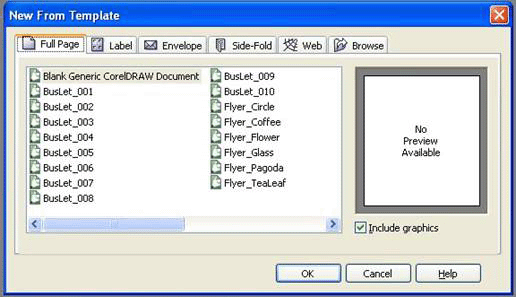
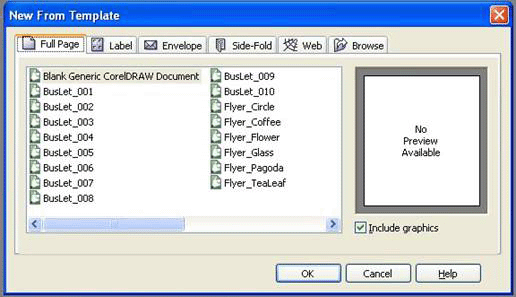
| New from Template: Enables you to choose from pre-designed page templates that you can use as a basis to begin a design. |
| |
 |
| |
| Corel TUTOR: Enables you to select from several categories of on-line help and instructions. |
| |
| What's new: Links and explains new features in CorelDRAW. |
| |
| |
|
|
| |


