| |
| Toolbar consist of buttons that are shortcuts to menu commands. The Standard toolbar, which appears by default, consists of commonly used commands. The table below outlines the buttons on the Standard toolbar. |
| |
| |
 |
| |
| Description of Standard Toolbar button |
| |
|
| Customizing Toolbar |
| |
| 1. To move toolbar click the toolbar's grab area and drag the toolbar to a new position. |
| |
| 2. To dock toolbar click the toolbar's grab area and drag the toolbar to to any edge of the application window. |
| |
| 3. To undock toolbar click the toolbar's grab area and drag the toolbar away from the edge of the application window. |
| |
| 4. To hide toolbar click Tools > customization, click command bars and disable or enable the check box next to the toolbar name. |
| |
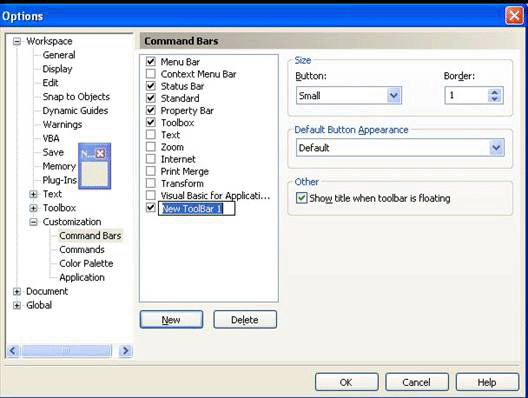
| 5. To add a custom toolbar click Tools > customization, click command bars and click new and type a name. |
| |
 |
| |
| Here in the above picture it is shown that new toolbar has been added and given a name new toolbar 1. |
| |


