| Getting Started with AutoCAD |
| |
| Drawing lines to exact points |
| |
| Steps: |
| |
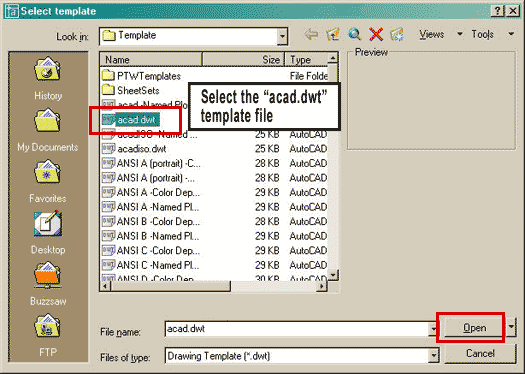
| Start AutoCAD and a new drawing by using the menu option File > New. You will see a dialog box open that asks you to select a template drawing to use (as shown below): |
| |
 |
| |
| Select the "acad.dwt" template file and press the Open button to continue to the drawing screen. |
| |
| Once there, type in Z <ENTER> E <ENTER> this will zoom into to the extents of the drawing area and make it easier to see what you are drawing (NOTE: nothing will appear to happen). |
| |
| For all lessons on this level, make sure that you do not have Dynamic Input turned on. |
| |
You can check this on the status bar. Make sure  (the DYN button) isn't depressed. This is a new system of entering points that will be covered in a later lesson, but personally I find them less convenient and can affect you computer's resources. (the DYN button) isn't depressed. This is a new system of entering points that will be covered in a later lesson, but personally I find them less convenient and can affect you computer's resources. |
| |
| Start the LINE command (as explained in the table above) and draw a line from 1,2 to 3,2 to 3,4 to 1,4 Press enter after each point. (*Remember to watch the command line as you do this.) For the last line, you can either type in 1,2 or C to close the line back to the first point you entered. You have just drawn a 2" square using absolute co-ordinates. |
| |
If you make a mistake, you can use the undo icon, press U or press CTRL+Z. press U or press CTRL+Z. |
| |
| You can also use the ERASE command to get rid of lines you don't want. |
| |
| Next draw a similar box using relative co-ordinates. Start the LINE command and begin at point 4.5,2. From there draw a line two units to the right by typing @2,0 (this means 2 units in the X direction, 0 units in the Y direction based on the last point you entered). |
| |
| Next type @0,2 then @-2,0 then @0,-2 to finish the box. (Remember to press enter after each point.) |
| |
| Now erase the last box you just drew. Start the ERASE command and then select the lines you want to erase. Then press
. Now redraw the box for more practice! |
| |
| Draw a third box using polar co-ordinate input. Start the LINE command and begin at point 8,2 then enter. Type @1<45 to draw the first line. Next enter @1<135 then @1<225 then @1<315 (or C to close). What you have just done is drawn a line 1 unit long at 45o, then another at 135o and so on. |
| |
| Start the CIRCLE command and add a circle that has a center point at 7,6 with a radius of .75 (Watch the command line for instructions). |
| |
| To finish the drawing, try putting a 10"x7" border around the page starting at 0,0 using the any of the methods shown above (relative, absolute or polar). |
| |
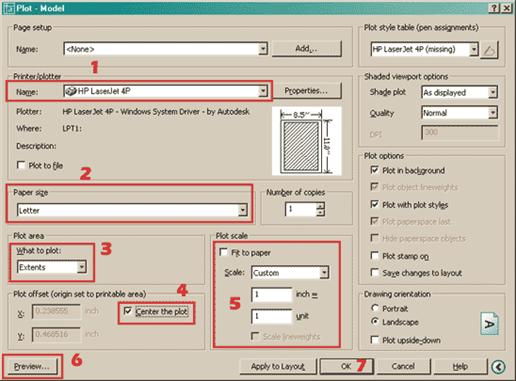
| When you have done the assignment, print (or plot) it out. To do this, bring up the plot dialog box using any method explained above (plot <enter> will work). Set it up to print as shown below. Follow these steps for a successful plot (see diagram below): |
| |
1. Select your printer - laser or inkjet will work fine.
2. Select the paper size - "Letter" ( 8-1/2" x 11") is needed in this case.
3. For the "Plot Area", select "Extents" - that will plot everything you drew.
4. Select the checkbox to "Center the Plot" on your sheet of paper (looks better).
5. If "Fit to Paper" is selected by default, uncheck it and select a scale of 1 inch to 1 paper unit. This will make your printout 'life-sized'.
6. Now Preview your drawing. I strongly recommend that you preview EVERY drawing you will ever draw in AutoCAD - a lot can go wrong, so you don't want to waste paper (especially when you're using expensive 3'x4' sheets!).If your preview looks good, cancel out of it by clicking on the large red X icon.
7. If you're sure that everything's ok (this is where good habits begin), press the OK button. |
| |
 |
| |
| Note: You may have to change the paper size in your printer (Use the Windows printer settings to do this.) You may also have to change the rotation or origin of the plot. Check the Landscape radio button in the Drawing Orientation section. |
| |
| If everything worked out, you should be able to measure your drawing and have it exactly the way you drew it (a couple of 2" squares, an angled 1" square and a 1-1/2" circle). |
| |
| Save your drawing as you would any other Windows file. CNTL+S will bring up the Save or Save as dialog box. |
| |
| Your boxes should match the drawing example. They will be the same size and on the same place in the drawing. If you have a ruler, you will see that your lines are life-size (1:1). From these basic concepts, you can now draw lines anywhere if you know where they should go. The next lessons will add to these commands. As you get used to the AutoCAD interface, you will find it easier and easier to learn the new commands. But for now, mastering the co-ordinate systems, inputting commands and reading the command line should be your priority. |
| |
|
| |


