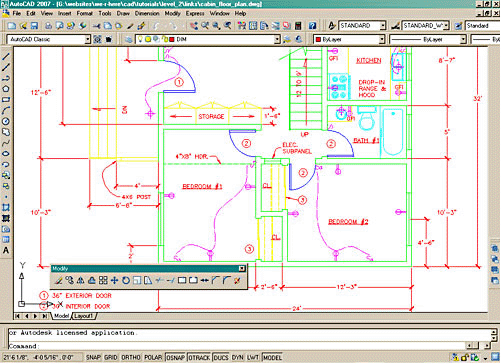
⢠Pull-down menus - These are the standard pull-down menus through which you can access almost all commands.
⢠Main toolbar - This has most of the standard Windows icons, as well as the most common AutoCAD commands.
⢠Property toolbar - This toolbar gives a way to quickly modify an object's properties, such as layer and linetype.
⢠Floating toolbar - This is a toolbar that can be moved around the screen, or 'docked' as the main toolbar is.
⢠Drawing space - This is where you draw. You have an almost infinite area to draw and this is just a 'section' of the entire space.
⢠Scrollbars - These work like in other windows programs. You can also use the PAN command to move around your drawing.
⢠WCS Icon - This is here to show you which direction positive X and positive Y go. The W means you're in the World Co-ordinate System. (It can be changed to a User Co-ordinate System.)
⢠Status Bar Tray Icons - These icons give you updates on items like reference files program updates and print status.
⢠Command line - When you type a command, you will see it here. AutoCAD uses this space to 'prompt' you for information. It will give you a lot of information and tell you where you are in the command. Watch this line while learning.
⢠Status bar - This allows to see and change different modes of drawing such as Ortho, Osnaps, Grid, Otrack, etc.
 |
 |
 |