| Working with Visual Studio 2005 |
| |
| Introduction to Visual Studio .NET |
| |
| In February 2002, software developers and architects worldwide; were introduced to Visual Studio .NET and the Microsoft .NET Framework. This landmark release, four years in the making, offered a unified development environment and programming model for constructing a range of software solutions. With the recent launch of Visual Studio .NET 2003, customers gained the benefits of enhanced tool and framework functionality, as well as increased performance, security and scalability for building enterprise-critical software. |
| |
| Visual Studio 2005 |
| |
| The release of Visual Studio 2005 and the .NET Framework 2.0 will make strides in all dimensions of application development. Microsoft Visual Studio is a complete set of development tools for building ASP.NET Web applications, XML Web services, desktop applications, and mobile applications. Visual Basic, Visual C++, Visual C#, and Visual J# all use the same integrated development environment (IDE), which allows them to share tools and facilitates in the creation of mixed-language solutions. |
| |
| First, Visual Studio 2005 will deliver features across the development environment and .NET Framework class libraries to help developers overcome their most pressing challenges in minimal time. Second, Visual Studio 2005 will enable developers to apply existing skills across a broader range of application development scenarios through improved integration with the Microsoft Office System and SQL Server 2005. Finally, Visual Studio 2005 will provide a new set of tools and functionality that will help satisfy the application development needs of today's large-scale enterprises. |
| |
| Microsoft .NET Framework 2.0 |
| |
| The Visual Studio 2005 uses the power of .NET Framework 2.0. In version 2.0, the .NET Framework will further extend the capabilities of developers by introducing significant enhancements across each of its functional areas. New release will give developers more efficient access to frequently used components such as printers, file system, and registry. Advances in Windows Forms and ASP .NET classes will reduce code in common scenarios by up to 70% |
| |
⢠Reliability and Scalability will also be significantly improved through support for 64-bit processors from Intel and AMD.
⢠Improved ASP .NET caching and page processing.
⢠Improved working set and startup-time.
⢠No-Touch deployment strategy will improve - Click Once
⢠Simplified Implementation of Multithreaded applications. |
| |
| Features of Visual Studio 2005 |
| |
⢠Enhanced SmartPhone and Pocket PC development environment
⢠64-bit version of .NET framework 2.0
⢠Create SQL Server stored procedures using a .NET language
⢠Cross machine debugging
⢠ClickOnce
⢠Refractoring
⢠Edit and Continue
⢠SmartTags
⢠Code Snippets
⢠Exporting IDE Settings
⢠Line Revision Marks
⢠Temporary Projects
⢠Multi-language Support |
| |
| Some features of the Visual Studio 2005 are explained below: |
| |
| ClickOnce |
| |
| The ClickOnce feature of Visual Studio 2005 make it simple to install applications and supply ongoing updates (Self-Updating), rather than forcing to distribute new versions of application, can just deploy the portion of the application which has changed. In the .NET Framework 1.0 and 1.1, href-exes were not able to solve many deployment issues. Href-exes are also known as ''no-touch deployment, or zero impact deployment''. |
| |
| Basically, using versions 1.0/1.1, you can deploy an application to a Web server, allowing users to browse to the URL for the exe, When the user clicks the link, the application downloads to their Internet files cache and runs. To keep this from being a huge security hole, the application permissions are restricted based on the URL (Intranet applications get different permissions than Internet applications, for example), or other factors. This means that some applications no longer need to be deployed in the traditional sense; no more setup.exe or MSI |
| |
| Refractoring |
| |
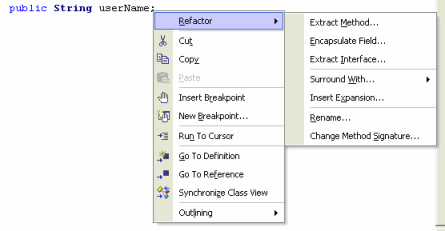
| To make changes in code like, "dragging a large stretch of inline code into its own method" or "converting a field to be a property." Under this programming model, you are developing code rapidly and iteratively, but to keep your code from becoming a jumbled mess, you must constantly Refactor. Refactoring is supported by C# only. |
| |
 |
| |
| Edit and Continue |
| |
| One key feature is the ability to fix runtime errors on the fly. With Visual Basic .NET 1.0 and Visual Basic .NET 1.1, this feature wasn't included. If you run into an exception at runtime, you get an exception helper that provides tips for fixing common errors, but more importantly, you can edit the code, select F5, and it continues right where you left off. Edit and Continue supported by VB .NET only. |
| |
| SmartTags |
| |
| This is a small clickable tag which is available on controls like data binding controls. This provides access to information and common tasks without forcing you to constantly navigate away from your work area |
| |
| Code Snippets |
| |
| Using code snippets, you can insert generic "template" code that requires only that you fill in the blanks. You can able to access code snippets by right-clicking in the code editor and navigating in the context menu to Insert Snippets |
| |
| Exporting IDE Settings |
| |
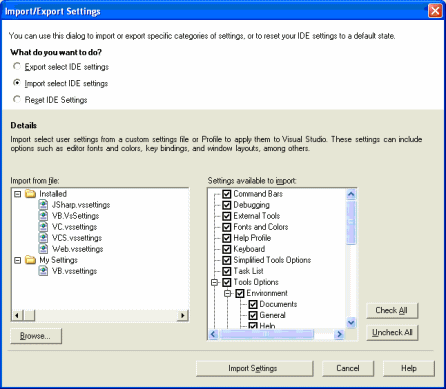
| With Whidbey, migrating and persisting IDE settings are a simple process of navigating to Tools | Import/Export Settings. |
| |
 |
| |
| Line Revision Marks |
| |
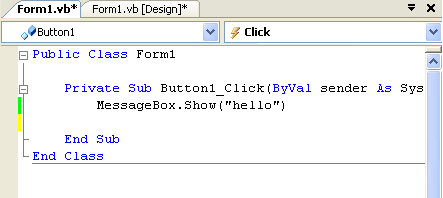
| Line Revision marks allow you to see the changes you've made during a coding session. When writing code in the IDE, you'll notice yellow and Lime lines appearing down the left hand side of the code editor window. |
| |
 |
| |
| To alter the color, navigate to '''Tools | Options''' in the IDE, and then choose '''Show All Settings'''. After that expand '''Environment''' click on the '''Fonts and Colors'''. Scroll down the '''Display Items''' |
| |
⢠'''Track changes before Save''' - yellow
⢠'''Track Changes after Save''' - Lime |
| |
| Temporary Projects |
| |
| Visual Studio .NET 2002 and Visual Studio .NET 2003 both had a propensity to persist your temporary ideas as permanent projects on your hard disk. This created the ''WindowsApplication1, 2, 3...n'' problem. Visual Studio .NET supports the idea of temporary projects. if you attempt to close the IDE without saving, it will prompt you to either save or ''discard'' the project |
| |
| System requirements |
| |
| To install Visual Studio 2005 Professional Edition, requirements vary for different combinations of components but the recommend requirements are following: |
| |
⢠Computer with a 600 mhz or faster processor
⢠Visual Studio® 2005 Professional Edition can be installed on the following operating systems:
Microsoft® Windows®° 2000 with Service Pack 4,
Microsoft® Windows®°XP with Service Pack 2
Microsoft® Windows®°XP°Professional°x64°Edition°(WOW)
Microsoft® Windows°Serverâ¢Â°2003 with Service Pack 1
Microsoft® Windows°Serverâ¢Â°2003,°x64°Editions°(WOW)
Microsoft® Windows°Serverâ¢Â°2003°R2
Microsoft® Windows°Serverâ¢Â°2003°R2,°x64°Editions°(WOW)
Microsoft® Windows°Vistaâ¢
⢠192 MB of RAM or more
⢠2 GB of available hard-disk space
⢠DVD-ROM drive
⢠1024x768 or higher-resolution display with 256 colors
⢠Keyboard and Microsoft Mouse or compatible pointing device |
| |
| Multi-language Support |
| |
| Visual Studio 2005 also supports programming language like Visual Basic.Net, Visual C# etc. a developer can use any of the language as per his own convenience. |
| |
|
| |


